
Quick answer: The Google Business Profile APIs let approved software manage your profile data, such as locations, photos, posts and reviews, on your behalf. Most business owners do not need to use the API directly: they use a tool that does. Developers need a Google account, a valid business reason, a Google Cloud project and a valid business website URL, and must request access. If you use a third-party tool, check that it uses the official API and that you can revoke access.
If you have ever used a tool that replies to Google reviews, posts to many locations or reads your profile data, it almost certainly uses the Google Business Profile APIs. This guide explains what they are in plain words, who needs them, how access works and how to stay safe.
What the API is
An API (application programming interface) is a safe, official way for one piece of software to talk to another. The Google Business Profile APIs let applications work with the same kind of data you manage in the profile interface.
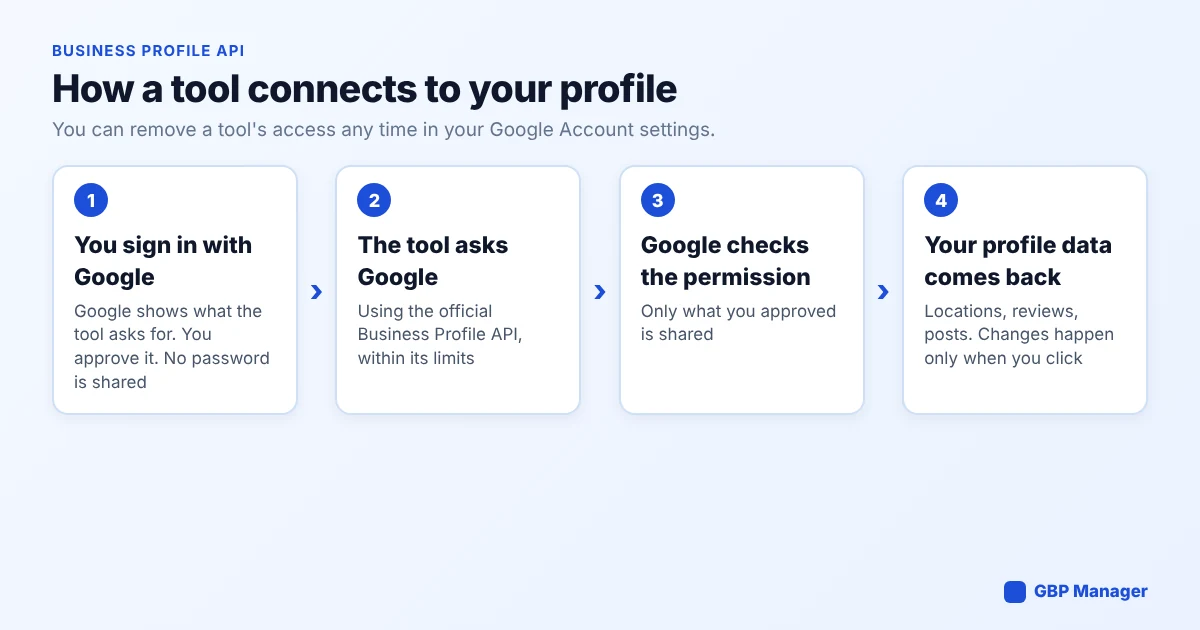
According to Google's developer documentation, the APIs allow developers to write applications to manage Business Profile account and location data. User-created data, such as photos, posts and reviews, can be managed through them. They also let merchants control how their data appears and who co-manages it, and they offer much of the same functionality as the Business Profile user interface.
In practice, this is what lets a tool do things like:
- list the locations you manage
- read and reply to reviews
- create posts
- read performance numbers such as calls and website clicks
Who needs the API
- Business owners: usually nobody. You use a tool. You never touch the API.
- Agencies and multi-location brands: you use a tool that uses the API, because managing many locations by hand is slow.
- Developers and software companies: you need API access to build or run a tool.
What you need to get access
Google lists these requirements for requesting access:
- A valid Google account
- A valid business reason for access
- A valid Google Cloud project
- A valid business website URL
You apply through Google's request process linked from its developer documentation. Rate limits apply once you have access, so your tool needs to be designed to be gentle on requests.
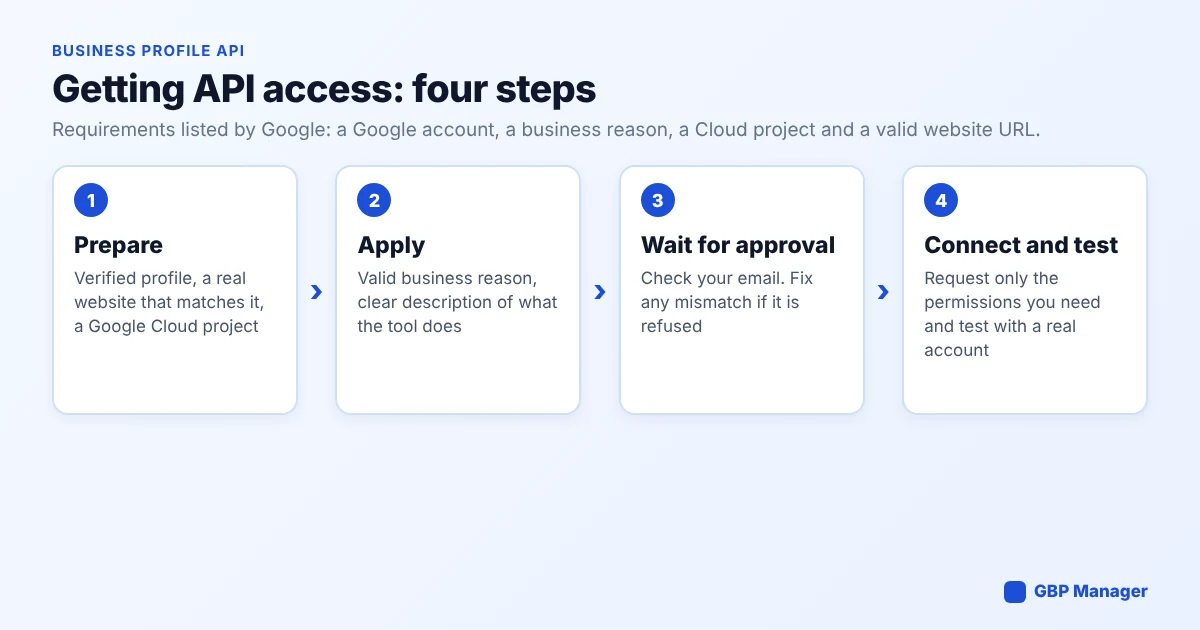
A realistic plan:
- Create a Google Cloud project for the tool.
- Make sure your business has a verified Business Profile and a website that clearly matches it.
- Fill in the access request with an honest description of what the tool does and why it needs access.
- Wait for Google's reply, which can take time.
- Once approved, configure sign-in, request only the permissions you need and test with a real account.
If your request is rejected
A rejection message can be short and unhelpful. A common reason is a mismatch: the website or details in your application do not match your Business Profile. We saw this ourselves. Our first application for GBP Manager was turned down with a message that it did not meet Google's criteria. The cause was a mismatch between the website URL in our application and the website listed on our Business Profile. We updated the profile so both showed the same brand name and website, resubmitted, and were approved.
Things to check before you reapply:
- Does your Business Profile show the same business name and website as your application?
- Is the profile verified and active, and does the website load a real page?
- Does the website explain what your tool does, and who it is for?
- Does your Cloud project have a clear name and a working contact email?
- Is your reason for access specific, such as "reply to reviews for client locations", not vague?
How to judge a third-party tool
Before you connect any tool to your Business Profile, run through these questions.
- Does it sign you in with Google? A safe tool sends you to a Google sign-in and permission screen. It should never ask for your Google password.
- Does it ask only for what it needs? Read the permission screen. A reply tool needs access to your business listings, not to your whole account.
- Can you revoke access? You can always remove a tool's access from your Google Account's security settings. Know where that is before you start.
- Does it say clearly what it stores? Look for a privacy policy that says which data is kept and for how long.
- Does it act only when you ask? Check that replies and posts are sent only after you click, not automatically.
- Is the company real? Look for a contact address, terms and a privacy page.
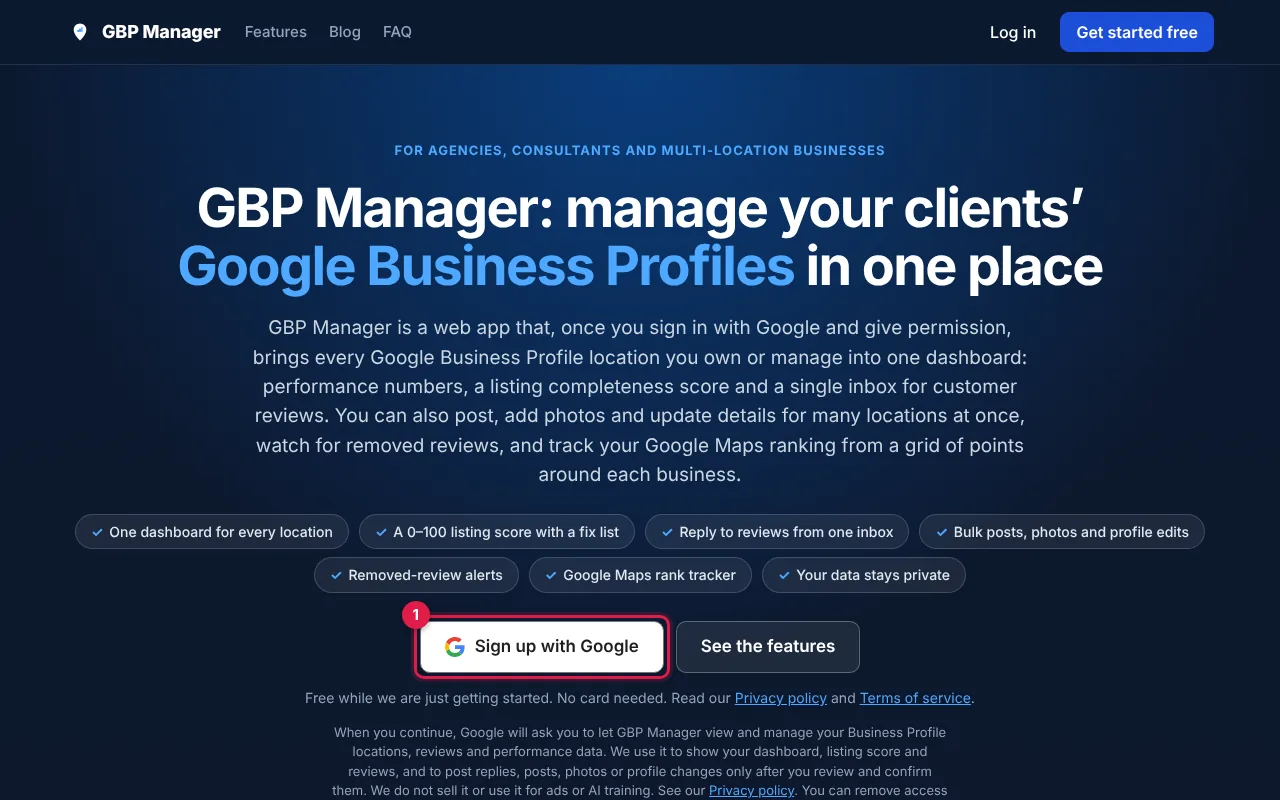
GBP Manager works this way. You sign in with Google, you approve access, and nothing is sent to Google until you click. See How to use GBP Manager, step by step.
What most guides miss
- API access is for tools, not a ranking boost. Using the API does not make your business rank higher. It makes managing it easier.
- Rejections are usually about identity, not code. Google needs to see a real, matching business and website. Most fixes are in your profile and website, not in your software.
- Plan for limits. Rate limits apply, so a tool that checks reviews too often gets blocked. Sync on a sensible schedule instead of constantly. GBP Manager syncs on a schedule and lets you sync on request.
- Keep your Cloud project tidy. Use a clear project name, keep credentials secret and rotate them if someone leaves.
- Co-management matters. If several people or tools manage a profile, keep a list of who has access. Remove those you no longer use.
- Use official APIs, not scraping. Tools that log in as you or scrape pages can break, can breach Google's terms, and put your profile at risk.
Quick answers
Do I need to use the API myself? No. Most owners and agencies use a tool that does.
Where do I find the current limits and terms? On Google's Business Profile API developer pages, which list usage limits and policies. They can change, so check them before you build.
Can the API rank my business higher? No. It is a management tool, not a ranking tool.
How long does approval take? It varies. Plan for days to weeks, and prepare your profile and website first.
Is it safe to connect a tool with Google sign-in? It is safer than sharing a password, because you control the permissions and can revoke access any time. Still, read what the tool asks for.
Does GBP Manager use the official API? Yes.
Try it
GBP Manager is free and uses Google's official sign-in. Connect your profile, reply to reviews, post to your locations and check your Maps ranking.
GBP Manager is not affiliated with Google. Google and Google Business Profile are trademarks of Google LLC.