
If you look after more than a couple of locations, posting to each profile one by one gets old quickly. GBP Manager lets you write one update and send it to all the locations you choose, and it shows you a summary before anything reaches Google.
This guide covers posts. The same page also handles photos and videos, services and profile details.
Before you start
You need your locations to be tracked. Open My listings, tick the Track box next to each location and click Save tracked locations. Only tracked locations can be chosen for a bulk action.
Step 1: Open the bulk page
Click Update many at once in the left menu. Along the top you will see the types of change you can make: Posts, Photos and videos, Services and Profile details. Stay on Posts.
Step 2: Write your post
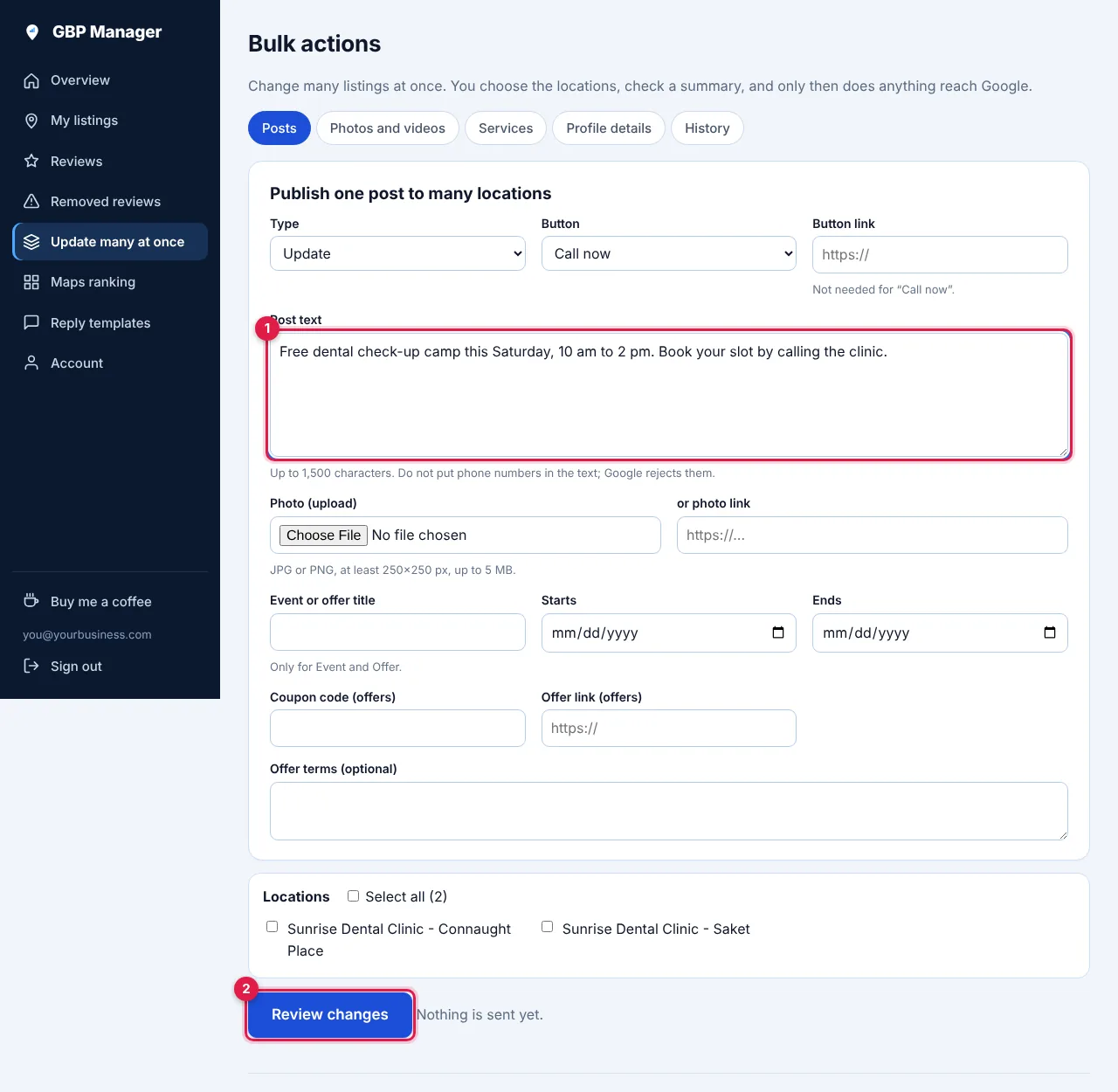
Choose the type of post: Update, Event or Offer. Pick a button if you want one, such as Call now, and add a link when the button needs one. Then write your text in the Post text box.
Tips for good posts:
- Keep it short. A couple of sentences is enough, and the box takes up to 1,500 characters.
- Do not put phone numbers in the text. Google rejects them. Use the Call now button instead.
- Add a photo. You can upload a JPG or PNG that is at least 250 × 250 pixels and up to 5 MB, or paste a link to one.
- For an Event or Offer, fill in the title and the start and end dates. For an offer you can add a coupon code, a link and the terms.
Step 3: Choose the locations
Scroll down and tick the locations that should get this post. If you added clients on the My listings page, you can pick a whole client at once instead of ticking each location.
Step 4: Review before sending
Click Review changes. The next page shows exactly what will be posted and to which locations. Nothing has been sent yet. Read it once, and only then confirm.
Step 5: Check the result
Open the History tab. It lists every bulk action with how many locations were done, skipped or failed. Open one to see each location. If any failed, use Retry the failed locations instead of starting again.
What else you can do on this page
- Photos and videos: upload photos for many locations at once and choose where they appear, such as cover, logo, exterior or interior.
- Services: paste a list of services, one per line, with an optional description and price, and add it to the chosen locations.
- Profile details: change the website, phone number, opening hours, business status or description for many locations at once. You can also find and replace a word across several descriptions.
A few tips for multi-location posts
- Mention the area or branch in the text when it makes sense. A post that fits every location is easier to write, but one that names the neighbourhood reads better.
- Post on a regular rhythm. One useful post a week beats five in one day.
- Always read the review screen. It is your last chance to catch a typo before it appears on every listing.
Not sure where to begin? Read the step-by-step guide to GBP Manager.
GBP Manager is not affiliated with Google. Google and Google Business Profile are trademarks of Google LLC.