
Search for "dentist" on Google Maps and you will not see one list of results. You see a different list depending on where you stand. A business can be first on the street next to its door and invisible two kilometres away.
A rank grid shows this. The tool searches Google Maps from many points around your business and puts your position on a map. This guide shows how to run one with GBP Manager, and how to read what comes back.
The screenshots use a made-up business, Sunrise Dental Clinic. You can run your first check for free; the cost is explained in step 3.
Step 1: Find your business
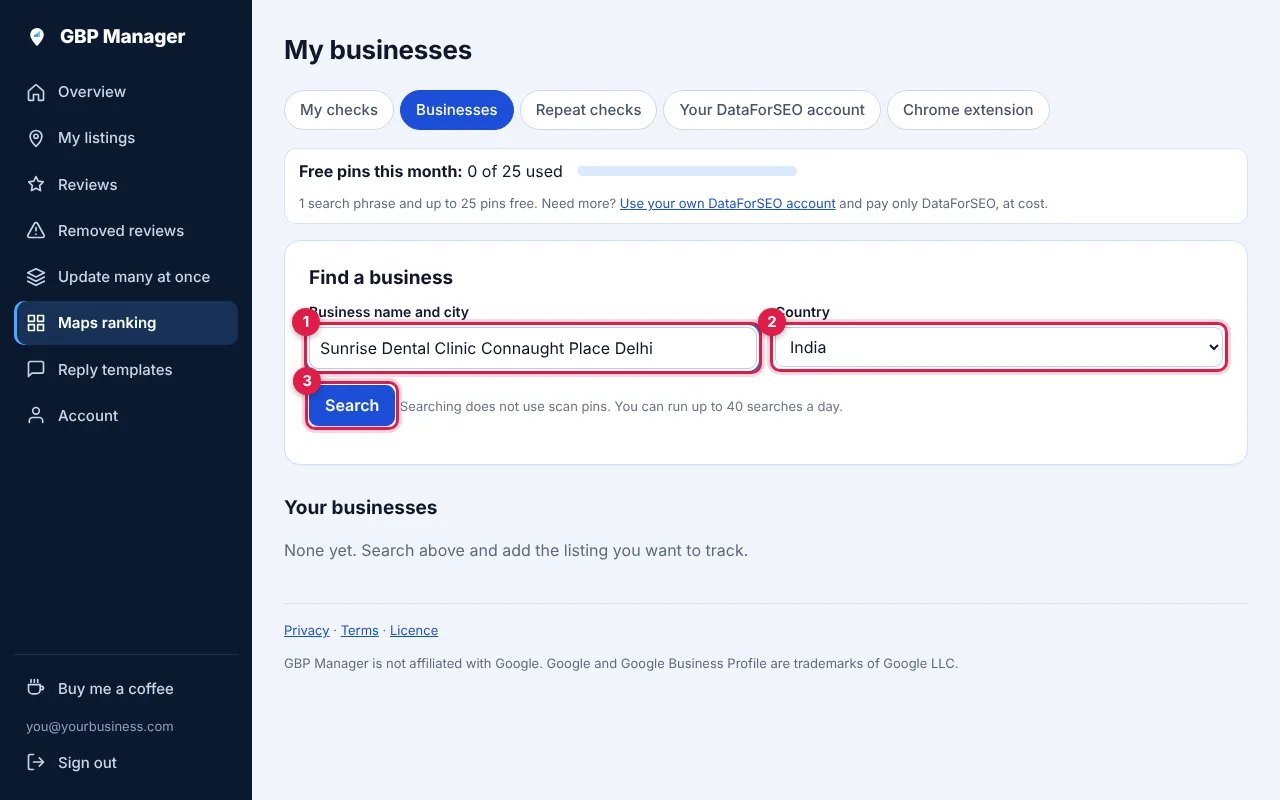
Open Maps ranking in the left menu and go to the Businesses tab. Type your business name and the city, choose the country, and click Search. Searching does not use any of your free pins.
Step 2: Pick the right listing
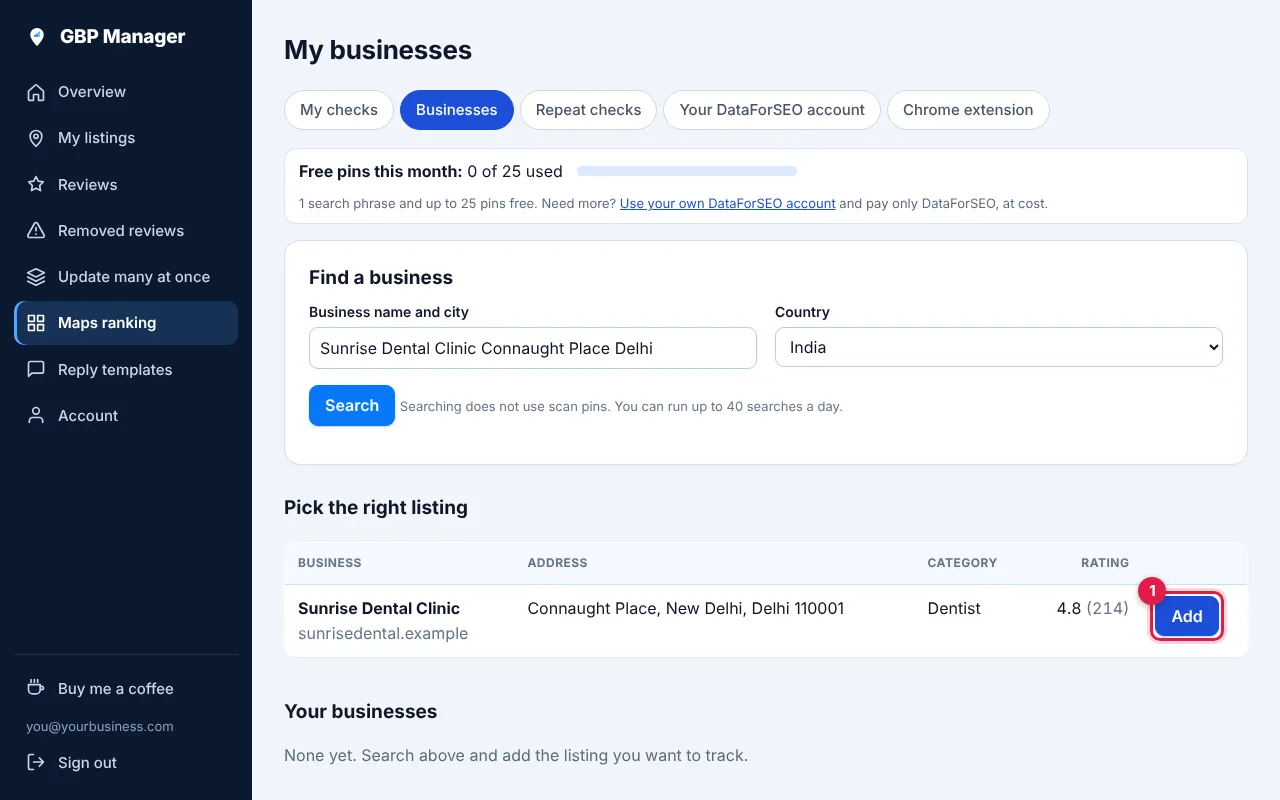
The results show businesses that match, with their address, category and rating. Click Add next to your own listing. If you manage more than one business, add each one the same way.
Step 3: Choose what to check
Go back to the My checks tab, or open Check my ranking. There are three choices to make.
- Which business? Pick the one you just added.
- What would a customer search for? Type the phrase the way a customer would, for example "dentist" or "emergency plumber". Leave the city out. Each point on the map already acts as its own location.
- How far around the business? Pick a size.
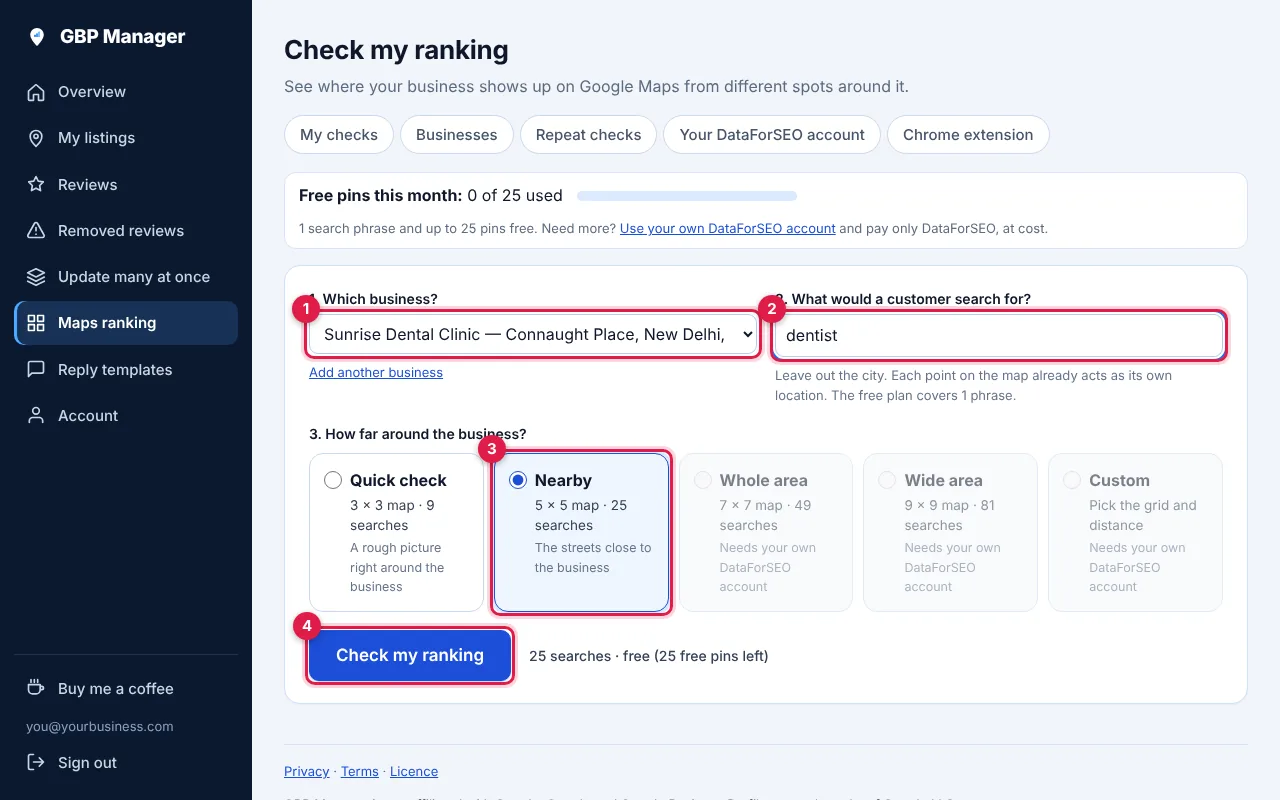
The sizes are plain-language names for a grid of points:
- Quick check: 3 × 3 map, 9 searches. A rough picture right around the business.
- Nearby: 5 × 5 map, 25 searches. The streets close to the business.
- Whole area: 7 × 7 map, 49 searches. Most of the town or neighbourhood.
- Wide area: 9 × 9 map, 81 searches. The whole city and its edges.
Each search is called a pin. The free plan covers one search phrase and up to 25 pins a month, so one Nearby check or two Quick checks. If you want bigger maps, see what rank tracking costs and how credits work.
Step 4: Read the map
While the check runs you see its progress, then the result page fills in. At the top you get four numbers:
- Top-3 coverage: the share of points where your business is one of the first three on the map.
- Average rank where it appears: your average position, counting only the points where you show up.
- Average rank, all points: the same, but a point where you are missing counts as position 21.
- Points where it appears: how many of the points found you at all.
Lower rank numbers are better. Then comes the map itself.
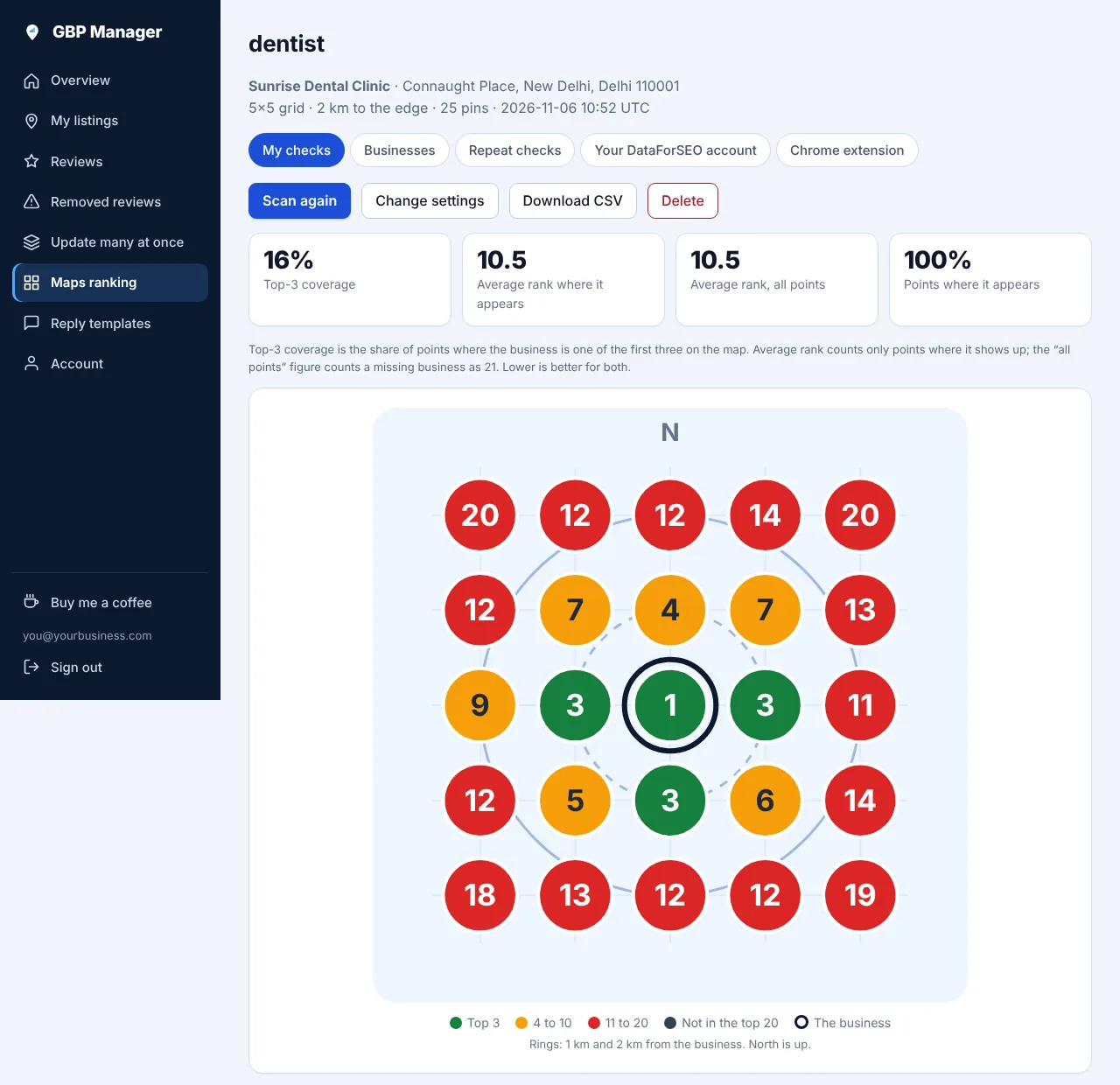
The colours are easy to remember:
- Green: top 3. You are doing well here.
- Orange: positions 4 to 10.
- Red: positions 11 to 20.
- Dark grey: not in the top 20.
In this example the business is first at its own address and in the top three on the streets next to it, then drops quickly. That is the normal pattern. Rankings usually fade with distance, and the map shows you how fast.
Step 5: See who is winning around you
Scroll down to Who is winning around you. The table lists the businesses that appear most often in the top spots, how many points each one wins, its average position and its rating.
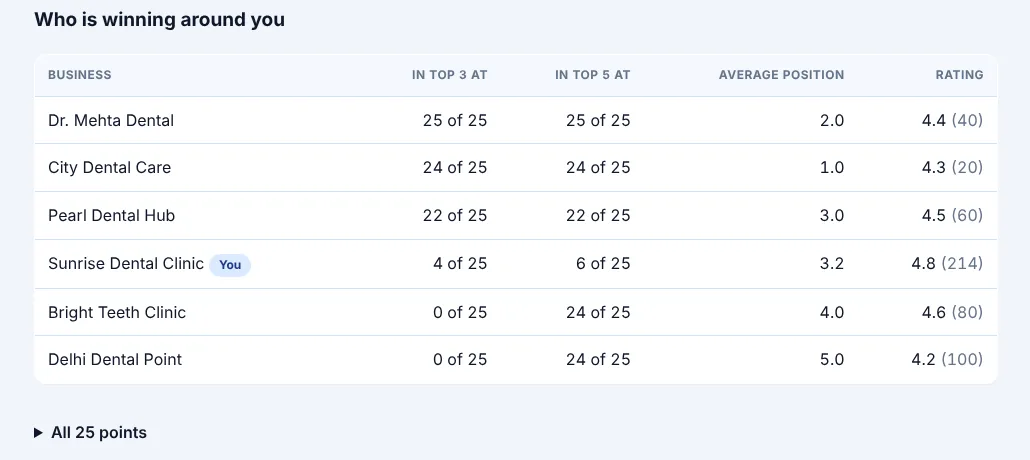
This is the most useful part for deciding what to do. If the leaders have far more reviews or a higher rating, reviews are your gap. If their category or services are listed more completely, fix your profile first. Our step-by-step guide to GBP Manager shows where each of those is edited.
Save, share and repeat
Above the numbers there are buttons to Scan again, Change settings, Download CSV and Delete. At the bottom of the page you can make a private share link to send a client the same view, and switch it off again whenever you like.
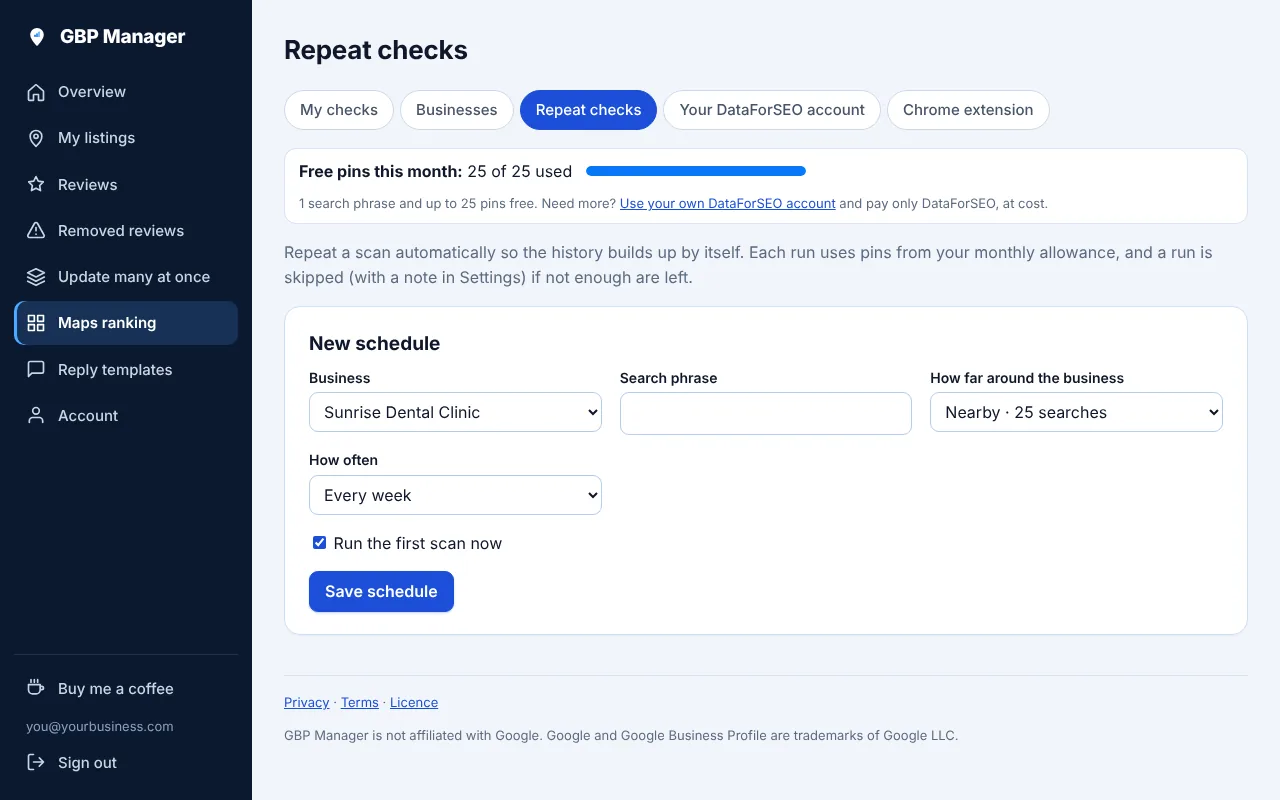
One check is a snapshot. To see whether your work is paying off, repeat the same check on a schedule. Open Repeat checks, choose the business, the phrase and the size, pick how often (for example every week), and save. Each run is saved to your history so you can compare dates.
Good to know
- Positions come from Google Maps searches made at each point. They can differ a little from what a person sees on their own phone, for example because of search history. Use the maps to compare places and dates, not as a promise.
- Check one phrase at a time. A map for "dentist" tells you nothing about "teeth whitening".
- Free Chrome extension: there is also a small Chrome extension for quick checks on your own computer. You will find it on the Chrome extension tab.
GBP Manager is not affiliated with Google. Google and Google Maps are trademarks of Google LLC.