
Quick answer: NAP stands for name, address and phone number. NAP consistency means those three details are written the same way on your Google Business Profile, your website and every directory that lists you. To fix mismatches, write one master record, search for every place your business is listed, and change each one to match the master. Fix the phone number first, then the address, then the name.
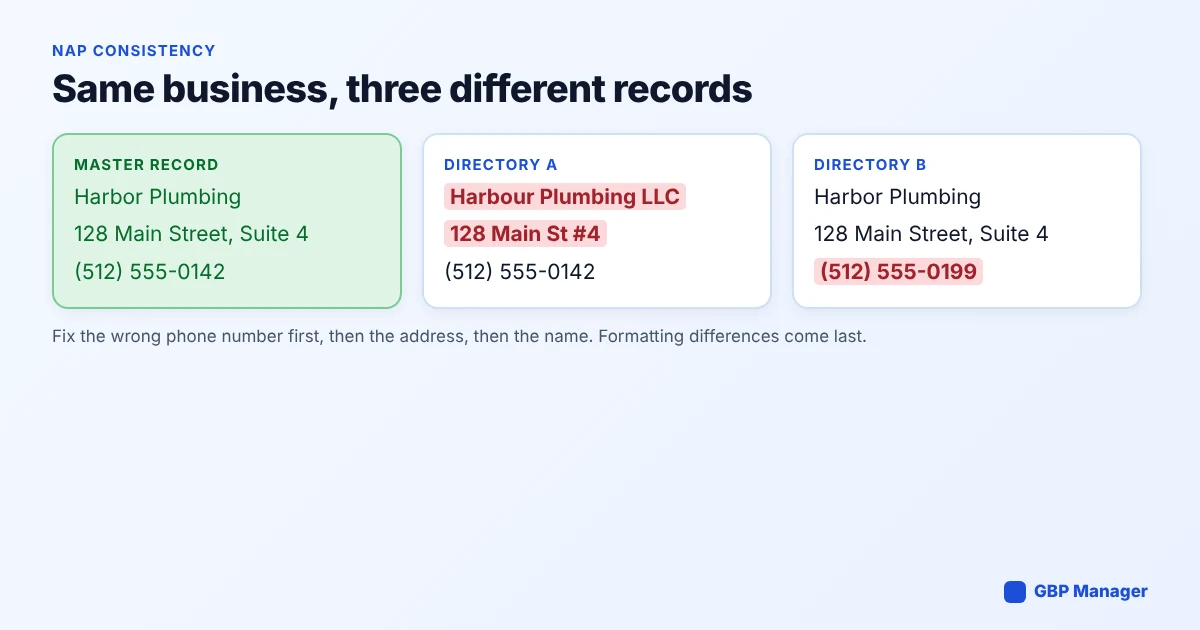
Imagine a customer finds your business in three places. One says "Harbor Plumbing, 128 Main St, Suite 4". Another says "Harbour Plumbing LLC, 128 Main Street #4". The third has your old phone number. A human can work out that these are the same business. A search system trying to confirm a business is real, and where it is, has a harder job.
Google does not say that perfect formatting is a ranking factor, and you should not obsess over tiny differences. But it does tell businesses to keep information accurate and complete, and mismatched details are one of the problems that show up again and again when a profile is suspended or fails verification. This guide helps you remove the confusion.
What NAP means
- Name: your business name as it appears on your signage and documents.
- Address: your street address, including suite or unit.
- Phone: the number customers call.
Many people add a fourth item, website address, so you will see NAP+W. Keep that consistent too.
Why it matters
- Trust and prominence. Mentions of your business around the web, called citations, help Google see that you are real and established. Conflicting mentions make that picture less clear.
- Fewer duplicates. Old details create duplicate listings, and Google's guidelines say a business should have one profile per location. Duplicates can lead to suspension.
- Fewer lost customers. An old phone number or address sends real people to the wrong place.
- Easier verification and appeals. If you ever need to prove your business to Google, documents and signage that match your profile make that far smoother.
Step 1: Write your master record
Open a document and write your details once, exactly as you want them everywhere.
Decide each of these and write them down:
- Business name. Google's guidelines say to use the name your business is consistently known by in the real world, as on your sign. No keywords, taglines or locations added, and no legal suffix such as LLC unless it is on your signage or documents.
- Address format. Street and suite on separate lines if the form allows it. Spell out the street type (Street, not St) or abbreviate it, but pick one and use it everywhere.
- Phone number. One main number in one format, for example (512) 555-0142.
- Website. One exact URL, including https:// and the www or non-www version your site actually uses.
- Hours. Opening hours, including holiday hours, since mismatched hours are a problem too.
Copy and paste from this record every time. Do not retype.
Step 2: Find every place you are listed
Work through this list and note each result in a spreadsheet with four columns: place, link, what it says, and whether it matches.
- Google Business Profile (the source of truth, so fix it first)
- Your own website: contact page, footer, schema markup
- Bing Places and Apple Business Connect
- Facebook, Instagram, LinkedIn and other social profiles
- Major directories such as Yelp, Yellow Pages and similar
- Industry directories and professional bodies
- Local chamber of commerce and local news or event pages
- Review sites and delivery platforms
- Old press releases and guest posts that mention your address
Then search Google for your phone number in quotes, your old phone number if you have changed it, your street address in quotes, and your business name with your city. Open the first two pages of results. Old and duplicate listings often appear here.
Step 3: Fix in order of importance
Not all mismatches are equal. Fix them in this order:
- Wrong phone number. This sends customers to the wrong place or nowhere.
- Wrong address or suite. Same reason, and it affects maps and directions.
- Different business name. Variations like "Harbor Plumbing LLC" versus "Harbor Plumbing" matter, but less than a wrong number.
- Formatting differences like St versus Street. Fix these last, and only where it is quick.
Update the biggest and most visited places first: your website, Google, Bing, Apple and Facebook. Then work through the rest.
Step 4: Handle duplicates properly
If you find two listings for the same business, do not create another one. Claim the duplicate, or use the platform's option to report or merge it, and make sure only one listing remains with your master details. For Google profiles, use Google's duplicate and removal options.
Do not open a new profile for a business that already has one. Multiple profiles for the same business or location are listed in Google's guidelines as a reason for suspension.
Special cases
- Call-tracking numbers. If you use a tracking number, make your real, local number the main one on your profile and in directories. Put the tracking number as an additional number if the platform allows it.
- Moved or rebranded. Treat this as a project. Update Google, your website and the main directories first, then work down the list. Keep a note of the old details so you can find leftover listings.
- Multiple locations. Each location needs its own page on your website with its own address and phone, and its own profile.
- Service-area businesses. If you travel to customers and do not serve them from a public address, Google says to hide your address on your profile. Keep that approach consistent in directories that allow it.
- Practitioners in a shared building. Use your own suite and your own number, so you are not mixed up with other businesses at the address.
What most guides miss
- Fix the website first, not last. Every directory and customer checks your site to confirm your details. If your own site is inconsistent, other fixes undo themselves.
- Check schema as well as visible text. If your site has LocalBusiness markup, make sure it matches your master record. Developers often leave old data in it.
- Match the hours, not just NAP. Mismatched hours between your profile and your website are listed among common triggers for suspensions.
- Keep a change log. Every time you change a detail, write the date and where. When a listing shows the old data later, you can see whether it is yours to fix or still pending.
- Do not bulk-edit in one day. Many edits at once can trigger a review. Spread large changes across several days.
Check and keep it clean
Once the list is clean, re-check it every quarter, and any time you move, change number or rebrand. Put it in your monthly routine with the local SEO checklist for small businesses.
If you want a closer look at the directory side, read Local SEO citations: what they are and which to build. The full audit is in Local SEO audit: a 10-point checklist.
Check what your customers see
Your Google Business Profile is the master copy people see first. In GBP Manager, the Locations page lists the profiles you manage, so you can confirm in one place that the name and address on each one match your master record. Then run a map from Maps ranking to see whether Google shows you where you expect.
Quick answers
Is NAP a ranking factor? Google does not publish a list. What we do know is that it tells businesses to keep information complete and accurate, and inconsistent details are a common cause of suspensions and failed verification. Treat consistency as protection and trust, not as a trick.
Do small differences like St vs Street matter? Usually very little. Wrong numbers and wrong addresses matter a lot more.
Should I use a different number for each directory? No. Use one main number everywhere.
How long does it take for fixes to show? Directories update on their own schedules, from days to weeks. Keep a log and check back.
GBP Manager is not affiliated with Google. Google and Google Business Profile are trademarks of Google LLC.