
Replying to reviews is one of the few parts of local SEO that is fully in your hands. It shows future customers that someone is paying attention, and it takes minutes once you have a system. This guide gives you the system, and shows how to set it up in GBP Manager.
Why replying matters
When someone is choosing between two businesses, they often read the newest reviews and look at whether the owner answered. A calm, polite reply to a bad review can matter more than the review itself. A reply to a good review says thank you and tells everyone else the business is active.
You also stop good reviews from sitting there unanswered for weeks, which is what happens when replying is a big job you keep putting off.
A simple routine
- Once or twice a week, open the Reviews page. It shows reviews that still need an answer first.
- Start with the lowest ratings. They are the ones that need care.
- Reply to the rest in one sitting, using a template and one personal detail each.
That is the whole routine. Ten reviews take about ten minutes.
What to write
For 5-star reviews
Say thank you, use their name, and mention one thing from their review. Keep it short and warm.
Hi Rohit, thank you for the kind words about Dr. Kapoor and the team. We are glad the visit was painless. See you at your next check-up!
For 3 and 4-star reviews
Thank them, say what you will improve, and invite them back.
Hi Ananya, thank you for the feedback. We are glad the visit was quick, and we are looking at our parking so it is easier next time.
For 1 and 2-star reviews
Stay calm. Do not argue, and do not share any private details about the customer. Apologise for their experience, say one thing you will do, and offer a way to talk offline.
Hi Mohit, we are sorry about your wait. That is not the experience we want for anyone. Please call us on the clinic number so we can put this right.
Do not offer a discount or a gift in return for changing or removing a review. Google does not allow reviews to be bought or exchanged.
Set up reply templates in GBP Manager
Templates save you from typing the same sentence again and again, and they keep your tone the same across all your locations.
- Open Reply templates in the left menu.
- Give the template a title you will recognise, such as "Thanks for a 5-star review".
- Write the reply. Type
{reviewer_name}where the customer's name should go and{location_name}where your business name should go. They are filled in for you when you use the template. - Choose which star ratings it is for, then click Save template.
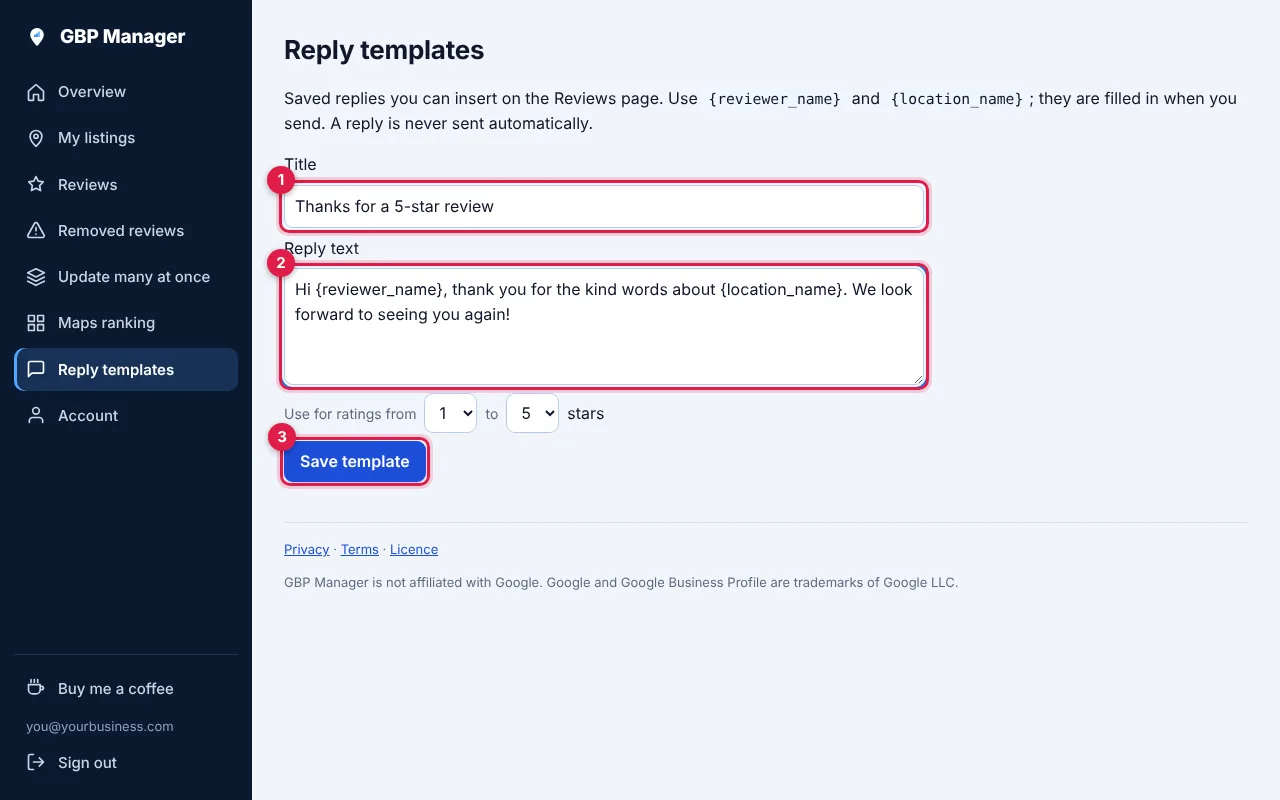
Make at least two: a warm one for 4 to 5 stars and a careful one for 1 to 3 stars.
Reply from the inbox
- Open Reviews. Reviews that still need an answer are shown first.
- Under a review, open the Insert a template drop-down and choose one. The text appears in the reply box with the name filled in.
- Change a few words, add one detail from the review, and click Send reply.
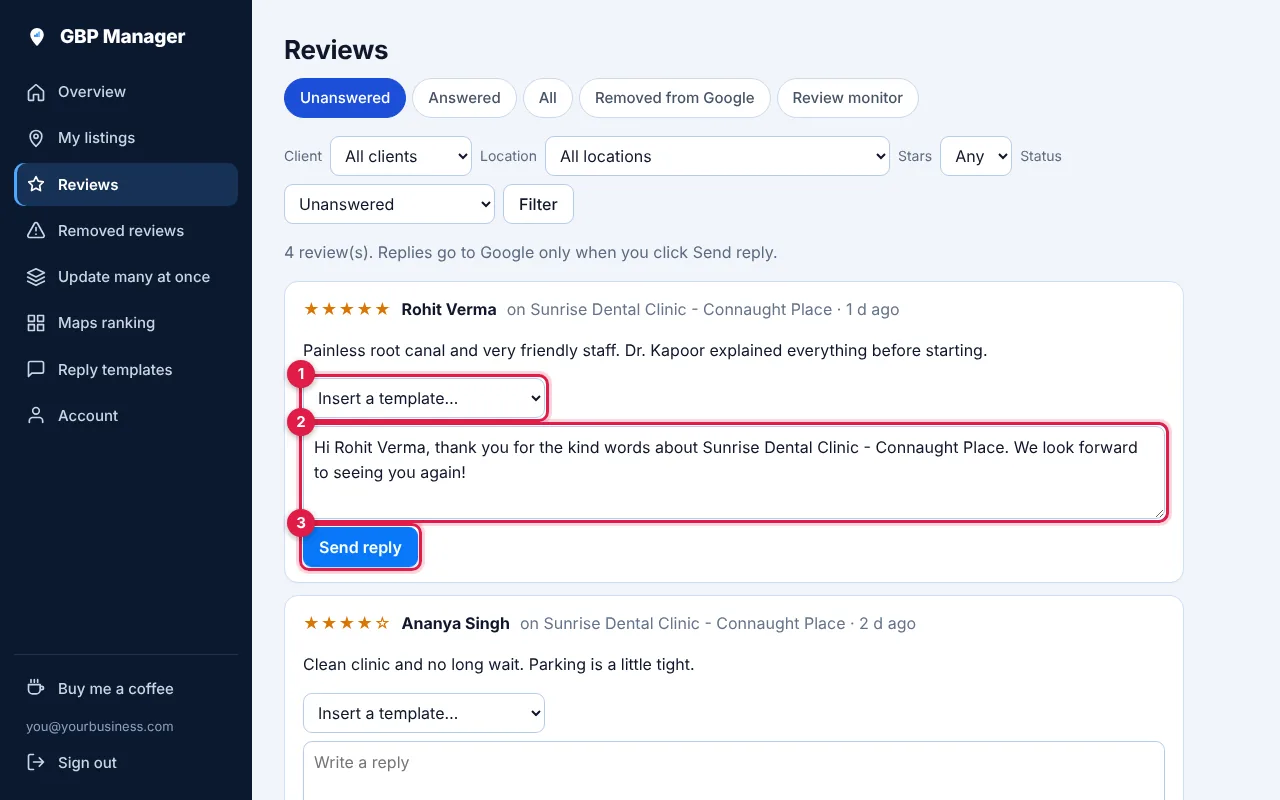
A reply is only sent when you click Send reply. Nothing is ever sent automatically. If you reply to a review that already has an answer, the button says Replace reply.
Keep an eye on waiting reviews
The Removed reviews page doubles as a review monitor. It shows your reply rate for each location, how long the oldest unanswered review has been waiting, and any review that has disappeared from Google.
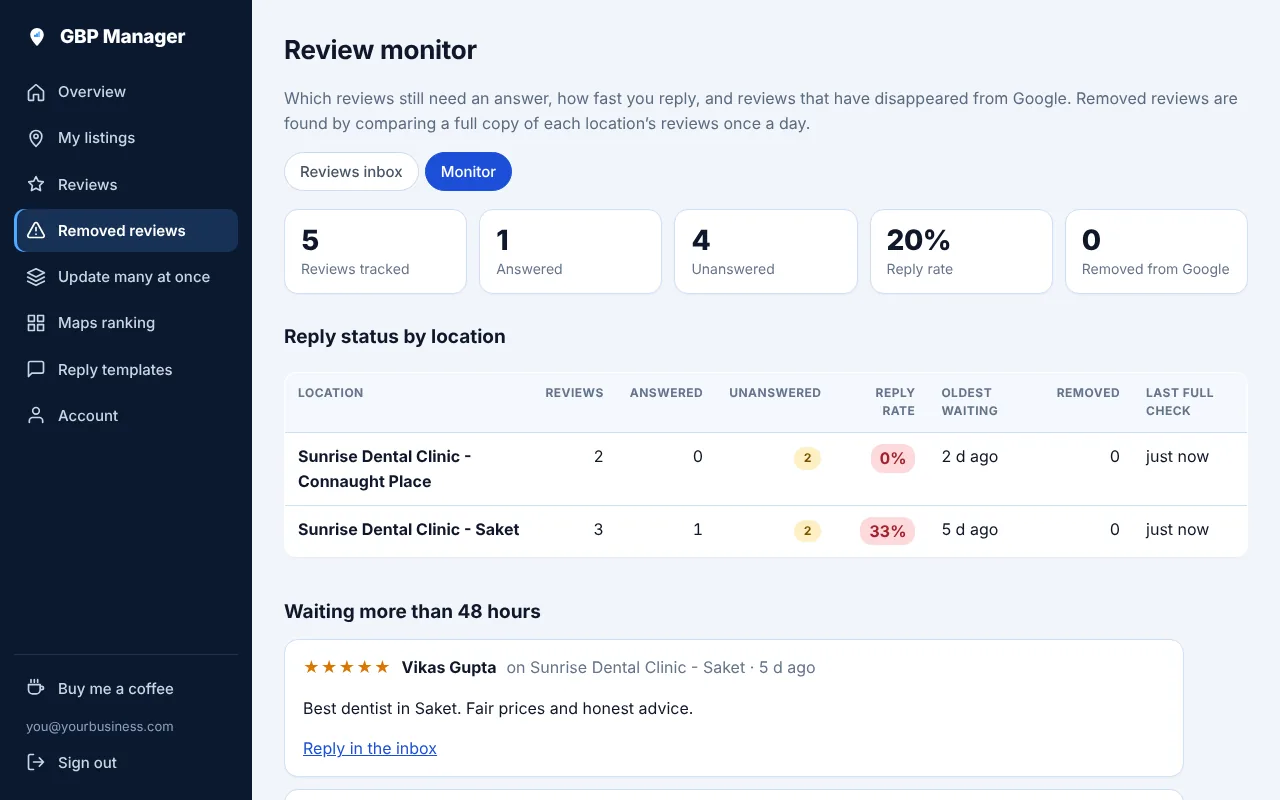
If you manage several locations, this is the quickest way to see which one has fallen behind.
A few rules that keep you safe
- Never copy and paste the same reply to every review. Use a template as a starting point and personalise it.
- Do not reveal anything private about the customer or their visit.
- Never pay for reviews or offer rewards for them.
- Reply in the same language the customer wrote in.
New to the tool? Start with the step-by-step guide to GBP Manager.
GBP Manager is not affiliated with Google. Google and Google Business Profile are trademarks of Google LLC.