
Quick answer: You may ask customers for reviews, and you can share your review link or QR code. You must not offer incentives (discounts, freebies, entries), ask only customers you expect to be happy (review gating), write reviews for customers or review your own business. Google can remove reviews and penalise profiles that break these rules.
The policy text can change, so read Google's current "Prohibited and restricted content" page for reviews.
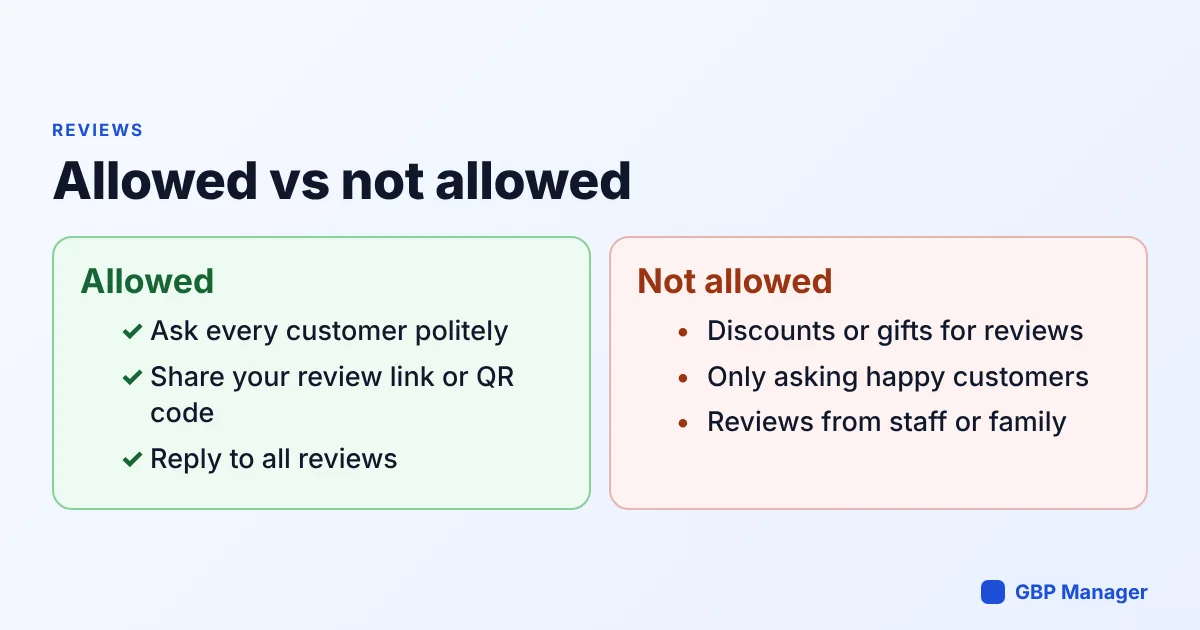
What is allowed
- Asking all customers, in person, by email, by text or on a receipt.
- Sharing your Google review link or QR code. See review link and QR code.
- Asking for honest feedback, good or bad.
- Replying to every review. See respond to reviews.
- Showing a sign saying "Review us on Google".
What is not allowed
- Incentives. Offering money, discounts, free products or entry into a prize draw in exchange for a review, even a "positive" one.
- Review gating. Asking customers to rate privately first and only sending happy ones to Google. Google discourages selectively soliciting positive reviews.
- Fake reviews. Reviews from people who did not use the business, written by the business, employees, friends or paid services.
- Conflicts of interest. Reviewing your own business or competitors.
- Review stations in the business that could produce reviews from one shared device or IP in bulk (Google warns that many reviews from the same device may be filtered).
- Off-topic or offensive content.
Safe ways to ask
- "If you were happy with the work, a short Google review would help us a lot. Here is the link."
- "We read every review. Would you share your experience on Google?"
- "Tell us what we did well, or what we could improve, here."
Ask everyone, not only the ones who smile.
Review stations and QR codes
A QR code on a receipt is fine. A tablet at the counter that many people use in one sitting may cause reviews to be filtered because they come from the same device. Prefer asking customers to review on their own phone.
Timing
The best time is right after the job or purchase, while it is fresh. Follow up once. Do not pester.
Staff and family
Do not ask employees, relatives or close friends to review. If a happy customer happens to be a friend and really used your service, be careful and keep it natural; policy risk rises when it looks coordinated.
What happens if you break the rules
Google may remove reviews, and in repeated or serious cases may limit or suspend your profile. See suspended profiles.
Check your process
- Do you ask everyone?
- Do you offer anything in return? Remove it.
- Can staff post from the business Wi-Fi in bulk? Stop.
- Do you reply to all reviews?
Common mistakes
- "Leave us 5 stars and get 10% off."
- Sending the link only after a positive chat.
- Paying a service for "guaranteed reviews".
- Asking a customer to change a negative into a positive in return for a refund.
Quick answers
Can I ask for 5 stars? Ask for honest reviews; do not demand a rating.
Can I thank customers with a gift afterwards? Not in exchange for a review.
Can I use a review tool? Yes, if it follows the policy.
Can I respond to every review? Yes, and you should.
Try it
Manage replies for every location in GBP Manager.