
Quick answer: Your Google review link opens a "write a review" box for your business in one tap. Get it from Google while signed in to the account that manages your profile (look for the option to ask for reviews or get more reviews), then turn it into a QR code. Test it on two phones, put it where happy customers will see it, and never offer rewards or pick only happy customers.
Most customers who would happily leave a review never do, for one reason: it takes too many steps. They have to find your business, find the reviews, find the button. A direct review link removes all of that.
This guide shows how to get your link, how to make a QR code, how to test both, and what to write when you ask.
Step 1: Get your review link
Google's own help says you can remind customers to leave reviews by asking them to visit a Google link or scan a QR code. Here is how to find yours.
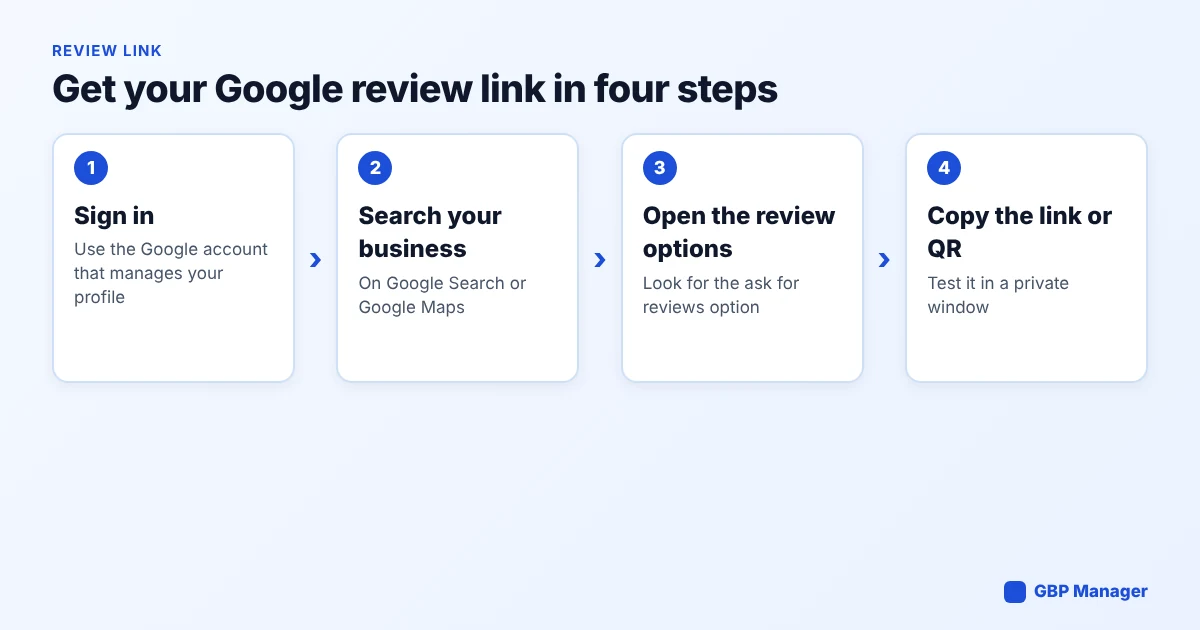
- Sign in to the Google account that manages your Business Profile.
- Search for your business name on Google, or open it in Google Maps.
- Look for the option to ask for reviews (the wording varies, for example "Ask for reviews" or "Get more reviews").
- Copy the link. Many versions of this screen also show a QR code you can download.
If you cannot find it: Google also supports a link built from your business's Place ID, in this format: https://search.google.com/local/writereview?placeid=YOUR_PLACE_ID. You can look up your Place ID with Google's Place ID Finder. Always test the link before you share it (see step 3).
Step 2: Make it short and keep it under your control
A raw Google link is long and ugly in a text message, and impossible to read from a printed card. There is a better way.
Create a short page on your own website, such as yoursite.com/review, that redirects to your Google review link. Print and send that short address instead.
Why this helps:
- It is easy to type if someone does not scan the QR code.
- If your Google link ever changes, you update one redirect instead of reprinting every card.
- Your QR code can point to the short address, so printed material stays valid.
Step 3: Turn it into a QR code
Use the QR code from Google if you see one. Otherwise any free QR generator will do: paste your link (or your short address) and download the image as a PNG or SVG.
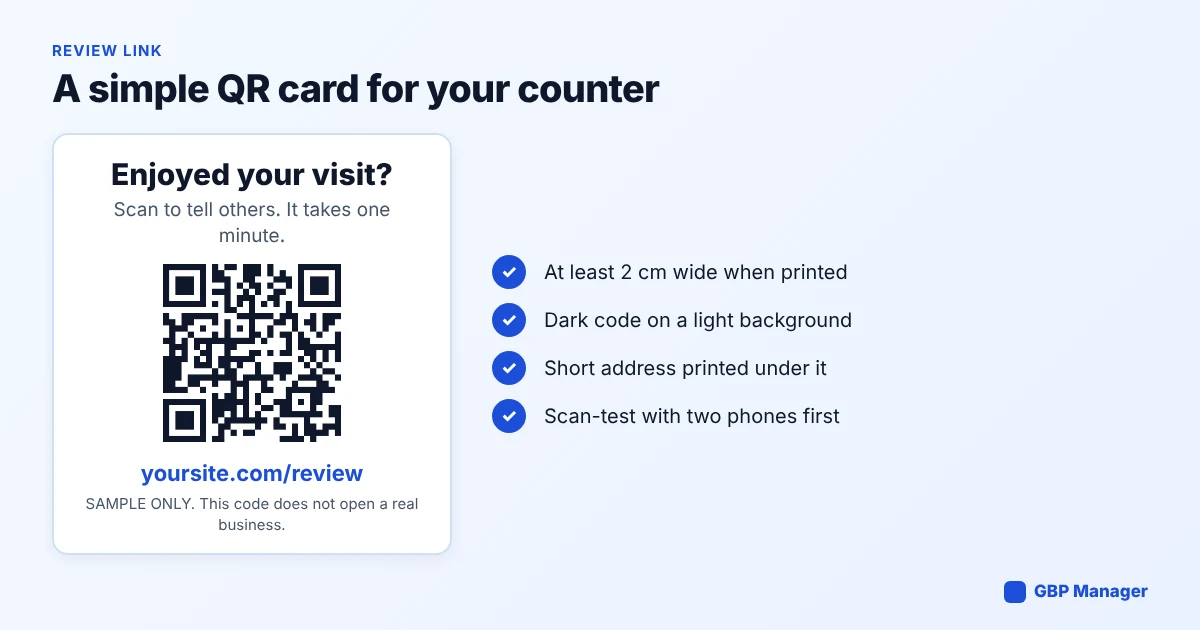
Print checklist:
- Make the QR code at least 2 cm (about 1 inch) wide on paper.
- Use dark code on a light background. Do not put it on a busy photo.
- Leave a clear white border around it.
- Add a short address under it in text, in case someone cannot scan.
- Print one test copy and scan it from arm's length with two different phones before you print 500.
Step 4: Test it like a customer
A link that fails once can cost you a review you would otherwise have got. Test it properly:
- Open the link in a private browser window, so you are not signed in as the business owner.
- Check it opens the review box for the right location. If you have several locations, each one needs its own link.
- Sign in with a different Google account and check you can write and submit a review.
- Remember that customers need a Google Account to leave a review. Google says they can create one with a non-Gmail email address, but some will give up at that point, so keep the ask short.
Where to use it
The best time to ask is right after a good moment, when the customer is happy and the memory is fresh. Think about when that is for your business:
- A dentist or doctor: when the appointment ends and the person is leaving, or in a follow-up message later that day.
- A restaurant: with the bill, or in a message the next day.
- A repair or home service: when the job is finished and the customer has seen the result.
- A salon: while the customer is still looking at the mirror.
Place it where the person has a moment to use their phone: the reception desk, on the receipt, on a card in the bag, in the confirmation email or in a WhatsApp message.
Messages you can copy
Keep the message short, personal and free of any reward. Replace the names.
WhatsApp or SMS
Hi Ananya, thank you for visiting Sunrise Dental today. If you were happy with your visit, would you mind sharing a quick review? It takes one minute and helps other patients find us: yoursite.com/review. Thank you! – Priya
Email, a day later
Subject: How was your visit?
Hi Ananya, thank you for choosing Sunrise Dental. Your feedback helps us improve and helps other people decide. If you have a minute, you can leave a review here: yoursite.com/review. Thank you, Priya
In person
If you were happy with today, it would really help us if you left a short review. There is a card here with a QR code, or I can send you the link.
On a printed card
Enjoyed your visit? Scan to tell others. It takes one minute.
Rules you must follow
Google's policies on reviews are strict, and businesses can lose reviews or have a profile suspended for breaking them.
- No rewards. Do not offer a discount, gift or free service in exchange for a review. Google treats this as fake and misleading content.
- No picking only the happy ones. Google says businesses may not discourage negative reviews or selectively ask for positive ones. Send the link to everyone, not only to customers you think were satisfied.
- No telling people what to write. Do not ask for specific wording, a star rating or the names of staff.
- No pressure and no review stations. Do not require reviews on your premises or stand over someone while they write one.
- No big bursts. Google bans unusual volumes or patterns of reviews meant to shift a rating. A steady flow looks natural, so ask people as they visit, not 200 people in one day.
What most guides miss
- Measure your conversion rate. Count how many people you send the link to each week and how many new reviews arrive. If you send 40 links and get 6 reviews, your rate is 15%. Change one thing at a time (the message, the timing, the channel) and see if the rate moves. Most businesses never count, so they never improve.
- Ask in the language the customer speaks. A message in the customer's own language feels more personal and is easier to act on.
- Make the first sentence about them. "Thank you for visiting today" works better than "Please review us".
- Do not stack asks. One message, and at most one reminder a few days later. After that, stop.
- Reply to every review you receive. It shows customers their effort mattered, and it encourages the next person. See How to respond to Google reviews.
Watch the reviews arrive
Once your link is out, you want to see what comes in. In GBP Manager, the Removed reviews page doubles as a review monitor. It shows your reply rate for each location, the oldest review still waiting for an answer, and any review that has disappeared from Google.
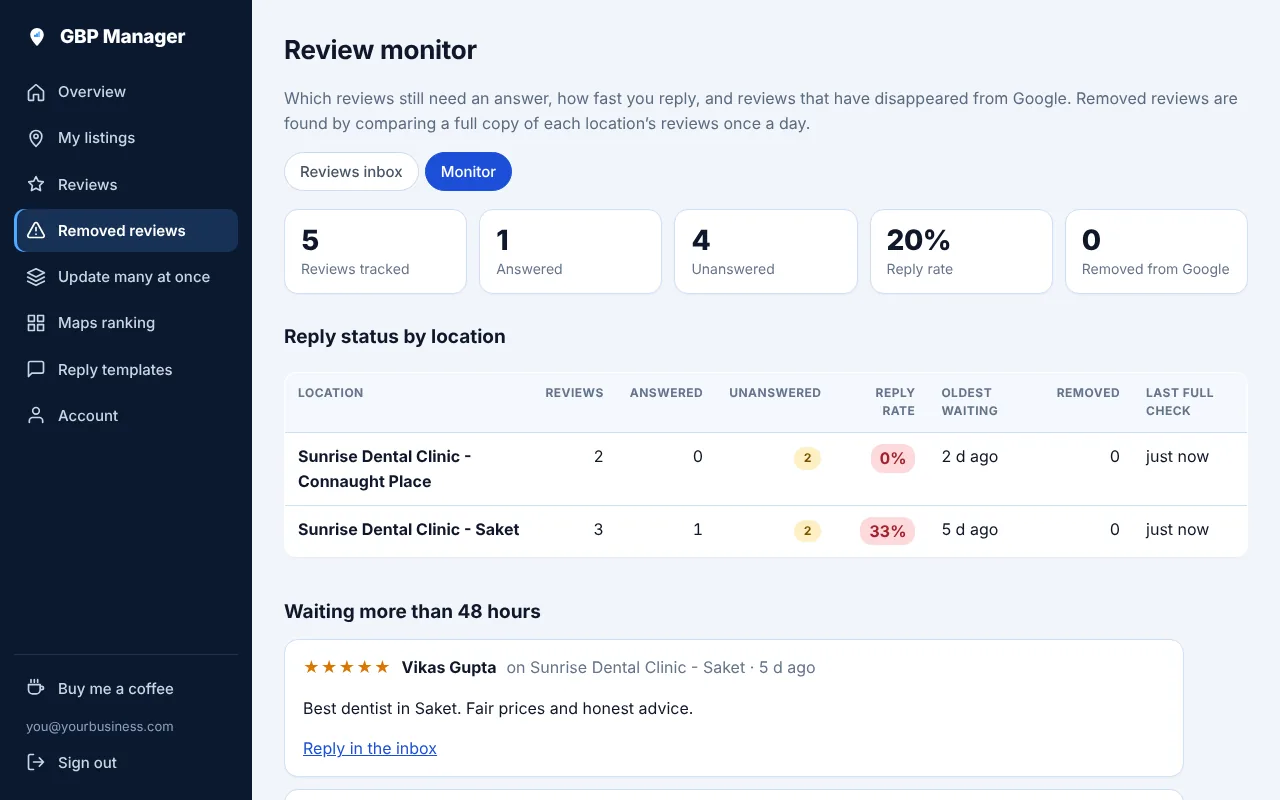
Open Reviews to read new reviews and reply from reply templates. For the bigger picture, read How to get more Google reviews.
Quick answers
Do customers need a Google account? Yes. Google says they can create one with a non-Gmail email address.
Does each location need its own link? Yes. A link opens the review box for one specific business location.
Can I change my link later? If you use a short address on your own website that redirects to Google, yes, in one place.
Can I put the QR code on a tablet at the counter? You can display it, but do not require customers to write a review on your premises or pressure them. Google's policy does not allow that.
Try it
GBP Manager is free. Sign in with Google to see your reviews, answer them from templates and watch your reply rate.
GBP Manager is not affiliated with Google. Google, Google Maps and Google Business Profile are trademarks of Google LLC.