
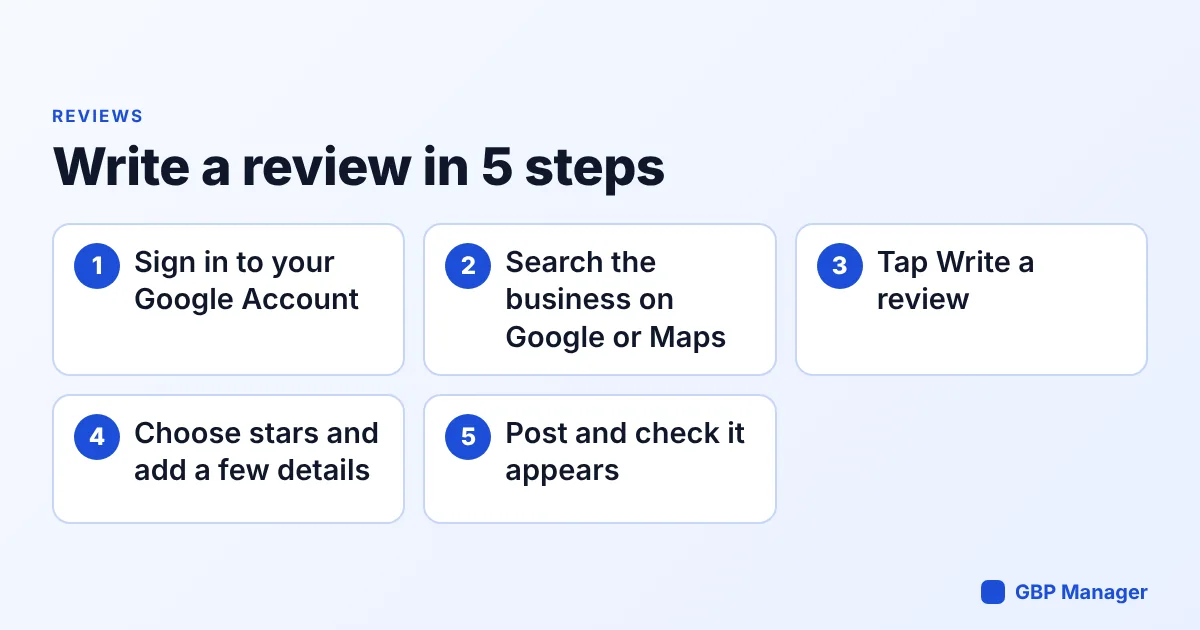
Quick answer: Sign in to your Google Account, search for the business on Google or Google Maps, tap Write a review, choose a star rating, add a few words about your experience and post. It takes about a minute. Your review shows under your Google name and profile picture.
On a phone (Google Maps)
- Open the Google Maps app and make sure you are signed in.
- Search for the business.
- Scroll to Reviews and tap Write a review (or tap the stars).
- Choose 1 to 5 stars.
- Write what happened. You can add photos.
- Tap Post.
On a computer
- Sign in to Google.
- Search for the business name and town.
- In the panel on the right, click Write a review or Reviews, then Write a review.
- Pick the stars, write your review, add photos if you wish.
- Click Post.
If the business sent you a link
A review link opens the review box directly. Sign in if asked, rate, write and post.
What makes a review useful
- Say what you bought or used.
- Say what was good or bad: speed, price, staff, result.
- Be specific, not just "great".
- Keep it honest and polite.
- Add a photo if it helps.
You do not need to write much. Two or three sentences help the next customer decide.
What Google does not allow
Google's review policy rules out fake reviews, reviews of businesses you did not use, offensive language, spam, conflicts of interest (such as reviewing your employer or a competitor), and off-topic content. Reviews that break the policy can be removed.
If you cannot post
- Not signed in. Sign in to a Google Account.
- New account. Some accounts need to be older or active before they can post.
- Business hides reviews? Businesses cannot turn off reviews, but some listings, like certain categories or locations, restrict them.
- Review does not show. It may be under review. See reviews disappeared.
- Local Guides. If you review often you may be a Local Guide. See Local Guides.
Edit or delete later
You can change or remove your own review whenever you like. See edit or delete a review you wrote.
For business owners
Make it easy for customers: share a short review link or QR code and ask politely. See review policy for asking.
Quick answers
Do I need a Gmail address? You need a Google Account; the email can be non-Gmail.
Is my review anonymous? No. It shows your Google name and photo.
Can I review without a star rating? A rating is required.
Can the business remove my review? No. They can only report it. See can a business delete reviews.
Try it
Business owner? See all your reviews in one inbox with GBP Manager.