
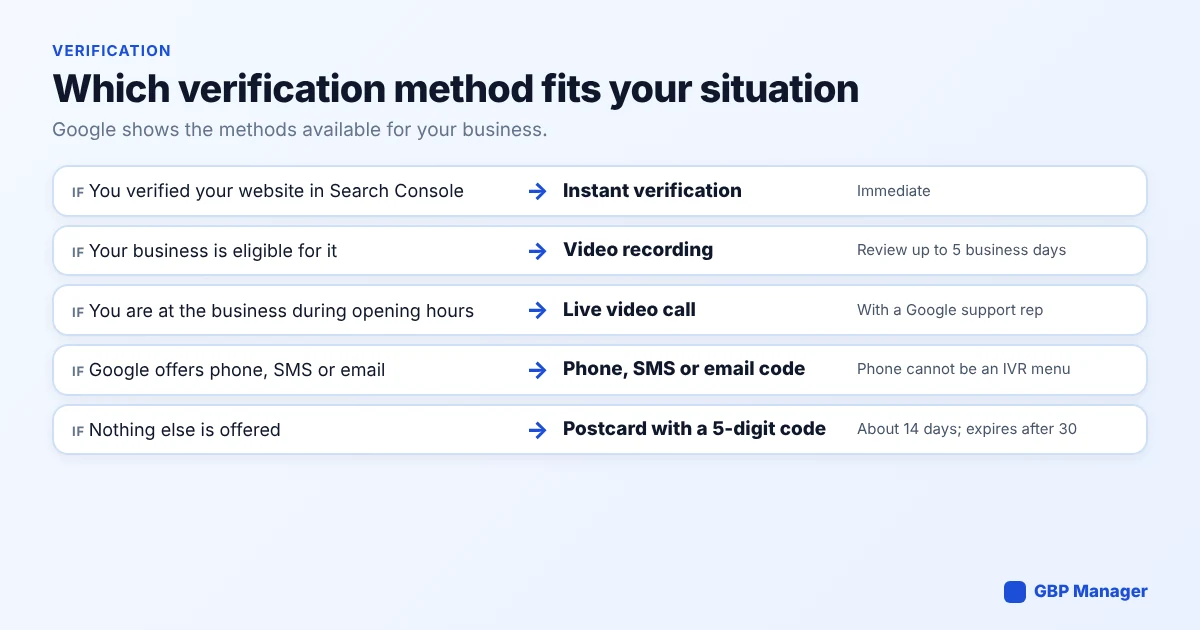
Quick answer: Google offers several ways to verify a Business Profile: phone or SMS, email, a live video call, a postcard with a code, a video recording, or instant verification if your website is already verified in Search Console. Which ones you see depends on your business. After you finish, Google may take up to 5 business days to review. If "Get verified" comes back, try again or choose another method.
Verification tells Google you are allowed to manage this business. Google lists it as the first tip for improving your local ranking, and without it you cannot fully use your profile. Here is what each method needs and how to avoid the common failures. The details below come from Google's own help page on verification.
The methods
Phone or SMS
Google calls or texts a code to your business phone number, and you enter it on your profile. Make sure the number can receive calls or texts. Google notes that IVR systems (automatic phone menus) cannot receive the code.
Google sends an email, and you follow the steps in it. You need to be able to use that address on the verification screen.
Live video call
A Google support representative guides you through a video call. Live video calls are only available during your location's business hours, so plan for that. You need a device that supports video calls, and you must be at the business.
Postcard
Google mails a 5-digit code to your business address and you enter it on your profile. Google says most codes arrive within 14 days, and codes expire after 30 days. Do not change your business details while you wait, and enter the code as soon as it arrives.
Video recording
Google recommends this if your business is eligible. You record a video that shows your business and send it for review. Google gives separate instructions on its help page.
Instant verification
Verification happens straight away if you have already verified your website in Search Console, or if you use bulk verification. If you manage a website with Search Console, this is the quickest route.
How long it takes
After you complete a method, Google reviews it for up to 5 business days, and sometimes longer. A postcard adds up to 14 days for delivery. Plan for about a week in the best case, and up to three weeks for a postcard.
Prepare for a video call or recording
Google asks you to show three things. Prepare a short walk-through so you can do it calmly.
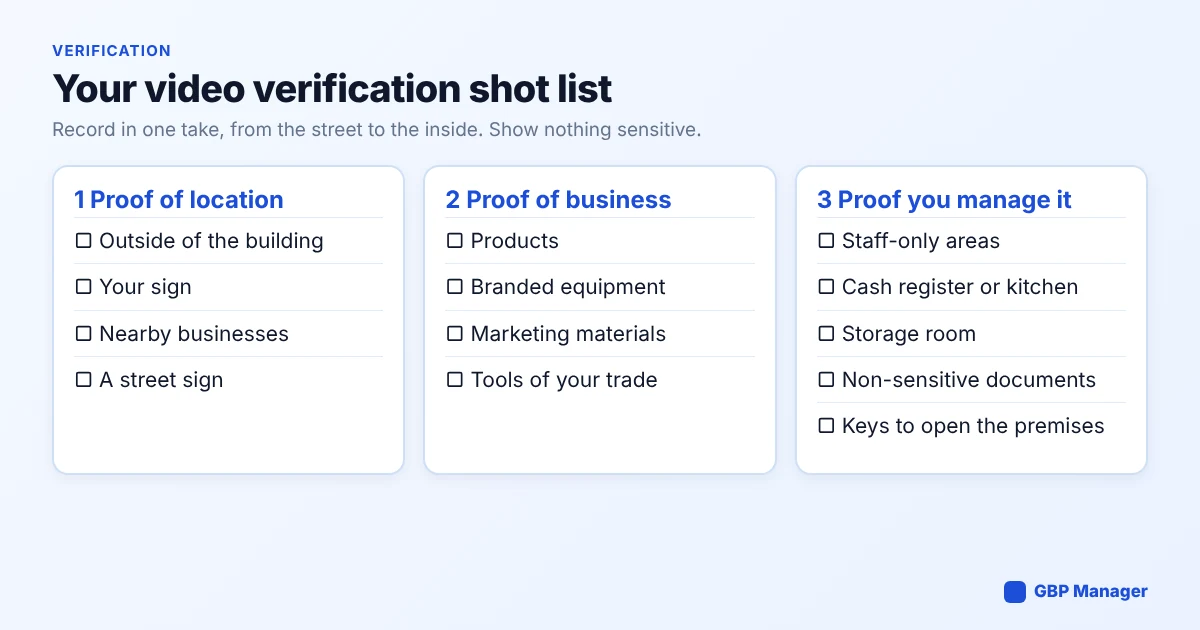
- Proof of location. Show the outside of the building, the sign, nearby businesses and a street sign.
- Proof of business. Show products, branded equipment, marketing materials or tools of your trade.
- Proof of management. Show areas only staff can enter, such as a cash register, a kitchen, a storage room, non-sensitive documents or the keys you use to open the premises.
Practical tips:
- Record in one continuous take, walking from the street to the inside.
- Make sure the signage shows exactly the same name as your profile.
- Do not show anything sensitive, such as customer records or IDs.
- Do it during daylight and opening hours, with good phone signal.
If verification fails
Google explains a few signs and fixes:
- The "Get verified" button comes back. Google could not fully verify you. Try again or use another available method.
- A video recording is rejected. You will see a "Review issues" notification. Select it and follow the on-screen instructions.
- Google asks for more information. This usually happens when you recently changed your business details. Select "Get verified" and verify again.
Also check these common causes:
- Name or address does not match the real world. Your signage, website and profile should agree. See NAP consistency.
- Address does not qualify. A P.O. box, virtual office or mailbox service is not accepted by Google's guidelines. A co-working space qualifies only with clear signage, customer reception during business hours and your own staff on site.
- Business type is not eligible. Google profiles are for businesses with a physical location that customers visit, or that travel to customers.
- You edited details several times just before applying. Many quick changes can trigger more checks. Make your changes first, then verify.
After you are verified
Do these in the first week:
- Check ownership. Make sure the profile belongs to a Google account you control, ideally a business account and not an agency's personal Gmail. Add a second owner as a backup.
- Complete every field. See the optimization checklist.
- Add photos of the exterior, interior and team.
- Set up your review link. See Google review link and QR code.
- Connect it to your tools. In GBP Manager, sign in with the Google account that manages the profile and choose your listings. You can then reply to reviews and post from one screen.
- Run a first map. Use Maps ranking to see where your newly verified profile shows up.
What most guides miss
- Choose the method by situation, not by speed. If you have a verified website in Search Console, try instant first. If your business is eligible for a video recording, it saves waiting for post. If you must use a postcard, make sure someone checks the mail daily.
- Verify as the right person. Verification is attached to the Google account that does it. Use a business account you will still have in three years.
- Do not request multiple methods at once. Finish one method before starting another, so you can tell which one worked and what to fix if it did not.
- Keep a screenshot log. Save screenshots of each step and any notification with the date. If something goes wrong, you can show what you did.
- Service-area businesses should hide the address. If you travel to customers and do not serve them from a public address, Google says to hide it. Verify with your real address, then hide it as your settings allow.
Quick answers
How long does verification take? After you finish a method, Google reviews it for up to 5 business days, sometimes longer. A postcard code usually arrives within 14 days.
Why did my postcard code not arrive? Check the address is correct and wait the 14 days. Codes expire after 30 days, so if it has been longer, request a new method.
Can I verify without a postcard? Often yes, using phone, email, video or instant verification. Google shows the methods available for your business.
My business is online only. Can I verify? Google's guidelines require a physical location customers visit, or travel to customers. An online-only business does not qualify.
Is verification free? Yes.
Try it
Once you are verified, GBP Manager is free to try. Sign in with Google and reply to your reviews or run a Maps ranking check in minutes.
GBP Manager is not affiliated with Google. Google and Google Business Profile are trademarks of Google LLC.