
Quick answer: To optimise a Google Business Profile, verify it, use your real business name, choose the most specific primary category, fill every field accurately (address, hours, services, attributes, description), add real photos regularly, post updates, collect and reply to reviews, and measure your results on a ranking map. Google says complete and accurate information helps it match you to the right searches.
A Google Business Profile is the first thing many customers see about your business. Optimising it is not about tricks. It is about being complete, accurate and active. This is the full checklist, field by field, with Google's own rules for each.
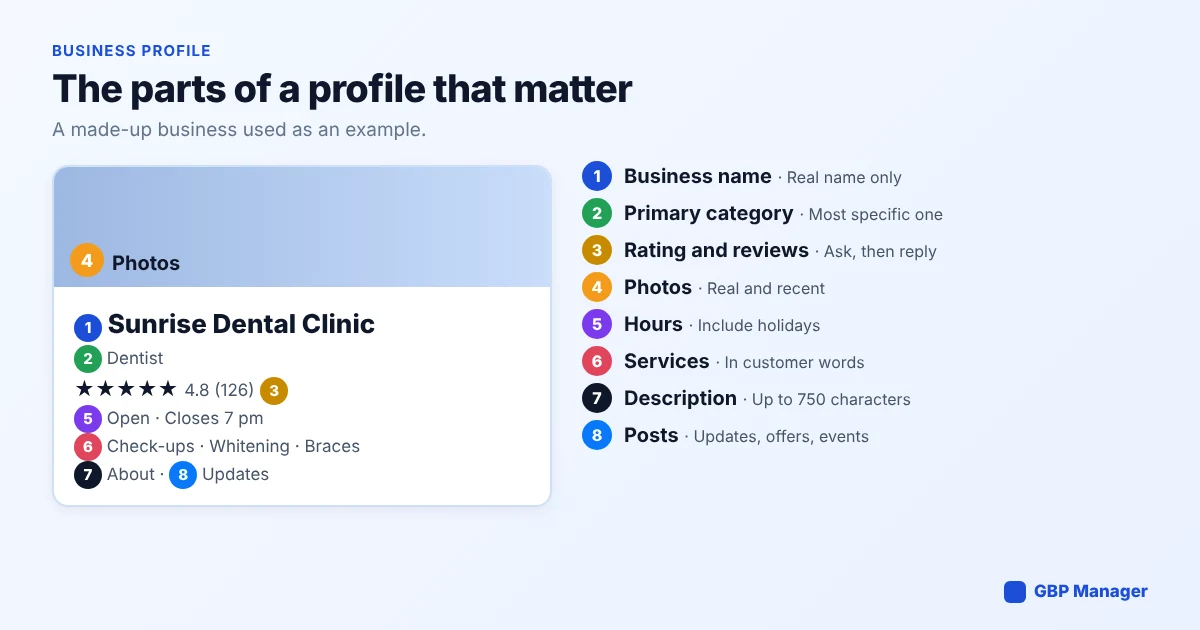
1. Verification
Verify your profile so Google knows you are authorised to represent the business. See Google Business Profile verification.
- Verified: yes or no
- Ownership: a business account you will still have in three years, plus a second owner as backup
2. Business name
Google's guidelines say to represent your business as it is consistently known in the real world, such as on your signage, website and stationery.
- Use the real name only
- No keywords, taglines, store codes, hours, phone numbers, URLs or service descriptions
- No location or directional details, and no all-caps
- No legal suffix such as LLC or Ltd unless it is really on your signage or documents
A keyword-stuffed name is one of the most common reasons for suspension. See Google Business Profile suspended.
3. Categories
- Choose your primary category carefully. It is the strongest signal of what you are.
- Pick the most specific category that fits ("This business IS a…", not "HAS a…").
- Add as few secondary categories as possible, only if they describe your core business.
- Do not use categories as keywords or for things you merely offer.
4. Address and service area
- Use a precise, real street address. P.O. boxes and remote mailboxes are not accepted.
- Put suites or floor numbers on a separate line.
- Do not put URLs or keywords in the address.
- If you serve customers at their location and do not serve them at a public address, hide the address and set a service area. Google suggests keeping service areas within about two hours' driving time.
- One profile per location.
5. Phone number and website
- A number that you answer and control, not a premium-rate or redirect number.
- A website link that goes to a real page on your own site, not only a social media page. Many people link the profile to a location page for multi-location businesses.
- Keep both the same as on your website. See NAP consistency.
6. Opening hours
- List your regular customer-facing hours, and set special hours for holidays and events.
- Do not list hours for appointment-only businesses or those with varied schedules, as Google's guidelines describe.
- Mark the business temporarily closed if it closes for a season.
- Do not list 24/7 unless you really are open all the time.
7. Business description
- Describe your services, products, mission and history in honest, natural words.
- Do not include links, promotions, prices or sales.
- Do not use gimmicky characters or misspellings.
- The description field allows up to 750 characters.
- Write it for a customer first: what you do, who you serve, what makes you different.
Example:
Sunrise Dental Clinic is a family dental practice offering check-ups, cleaning, whitening, braces and emergency care. Our team has served the Delhi community since 2008. We welcome new patients and offer early morning and Saturday appointments.
8. Services and products
- Add every service you offer, with a short description for each.
- Use the words customers use, not just industry terms.
- If you are a retailer in an eligible country, add products. Products must follow Google's rules, and regulated items are not allowed.
9. Attributes
Attributes like parking, wheelchair access, Wi-Fi and online appointments help customers decide. Tick the ones that are true, and review them every few months.
10. Photos and videos
- Add photos of the outside, the inside, your team, your work and your products.
- Use real photos, not stock images or logos with text overlaid.
- Add new ones regularly so the profile looks active.
- Check the date of your newest photo every month.
11. Posts
Posts show updates, offers and events on your profile.
- Updates: news and announcements, with an optional button linking to a page.
- Offers: need a title and dates and times.
- Events: need a title, start and end dates and times.
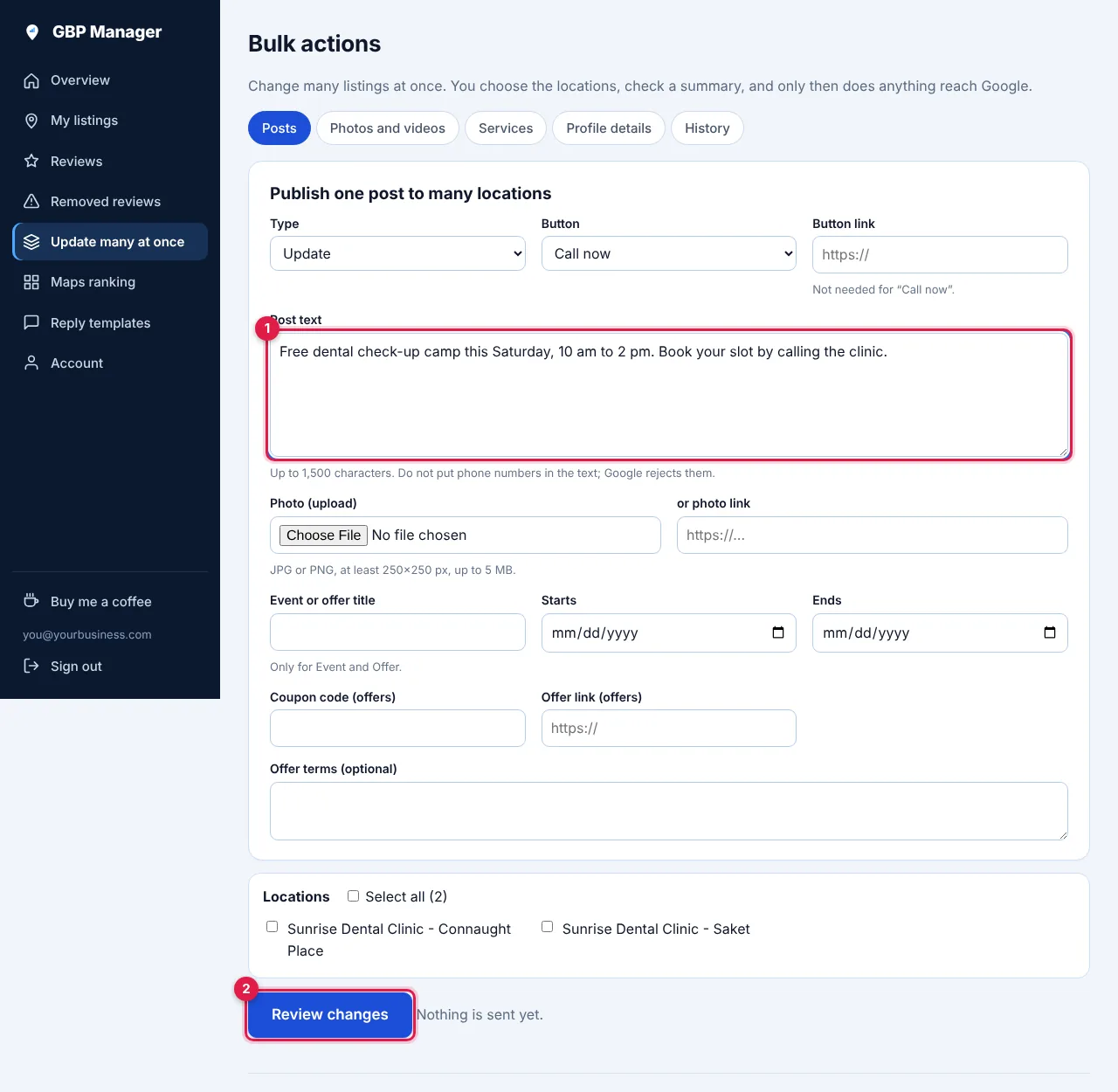
Posts are archived after six months unless you set a date range. Keep them professional and link only to trusted sites. If you manage several locations, posting from one screen saves time: see How to post to many Google Business Profiles at once.
12. Reviews
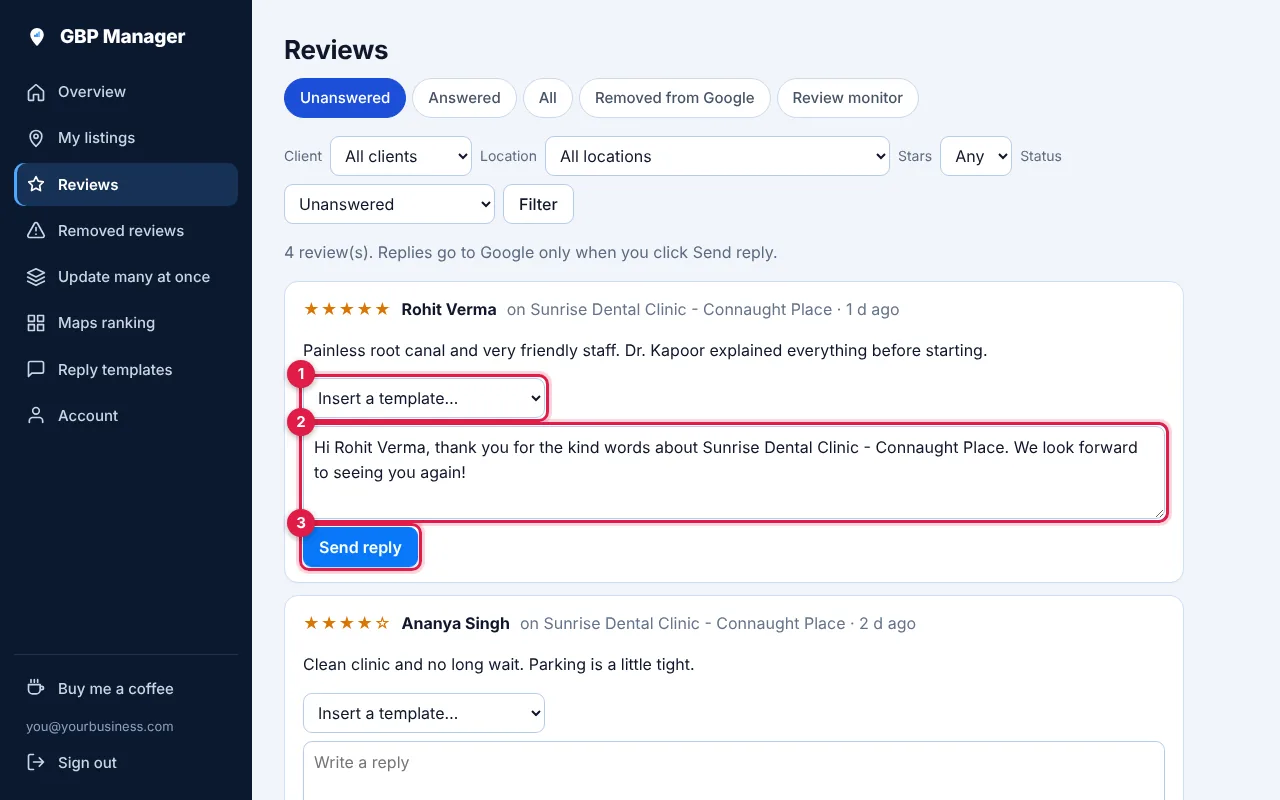
- Ask every customer for a review with your link, without incentives. See Google review link and QR code.
- Reply to every review within a day or two, with a personal reply. See How to respond to Google reviews.
- Track your reply rate and the oldest review waiting.
13. Measure the result
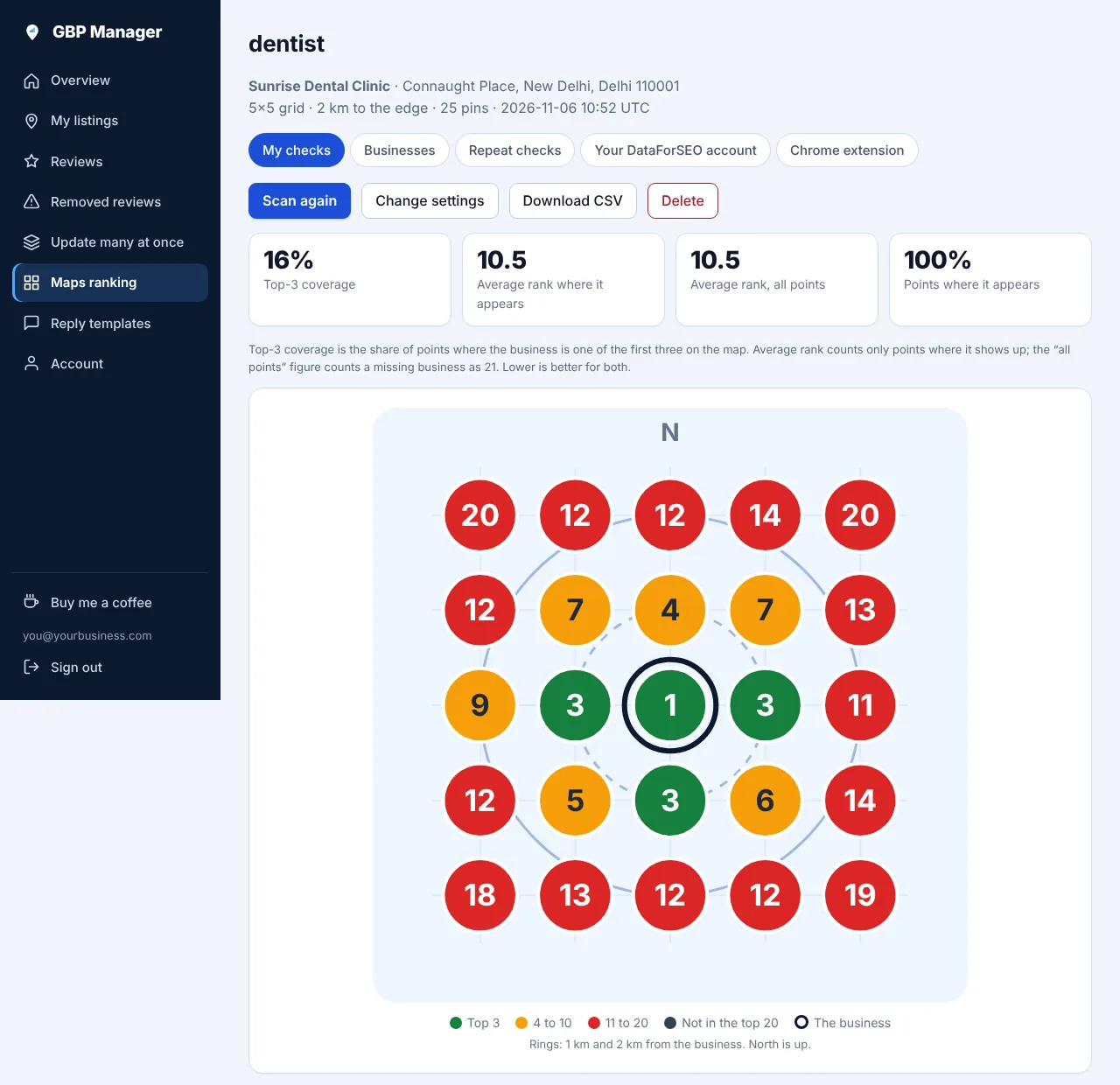
Optimising only counts if you measure it. Run a ranking map for your main phrase from many points around your address, and repeat it each month. In GBP Manager, open Maps ranking and check your Top-3 coverage.
Your scorecard
Give each of the 13 sections 0 (missing), 1 (partly done) or 2 (complete and accurate). Write the date.
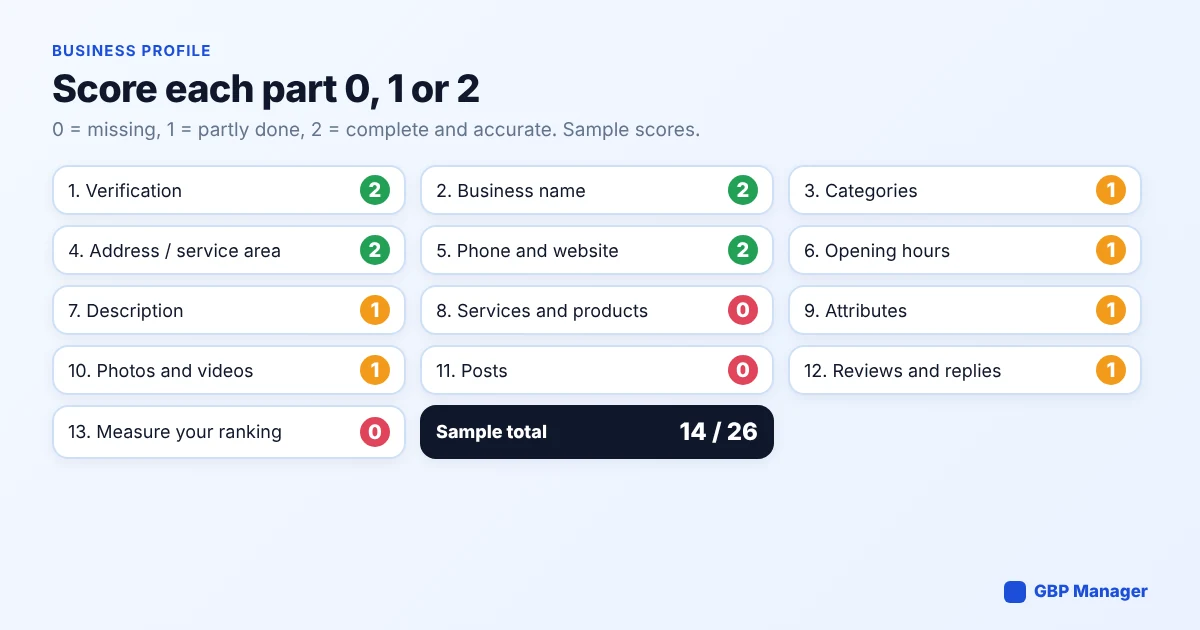
- 0 to 12: the basics are missing. Start with verification, name, category and address.
- 13 to 20: a good base. Close the gaps in hours, services, photos and reviews.
- 21 to 26: a strong profile. Focus on regular posts, photos, reviews and measuring.
What most guides miss
- Do the checklist in this order. Verification, name, category and address first. Everything else depends on them, and these are also the parts that can get you suspended if done wrong.
- Write for customers, not for the algorithm. Google's own rules push towards accuracy and completeness. A clear description that answers "what do you do and for whom" is better than a stuffed one.
- Keep a change log. Date every edit. If a ranking dips a week after a change, you will know why.
- Change one thing at a time. Name, category and address changes in the same week can also trigger a review.
- Re-check every quarter. Hours change, services change, staff change. Profiles go stale quietly.
- Look at it as a customer. Open your profile on a phone in a private window. What is the first photo? What do the first three reviews say? Is the phone number tappable?
- Fix what customers see first. The primary photo, the star rating and the first reviews matter more than a long attribute list.
Quick answers
How long does optimisation take? The basics take an afternoon. Reviews, photos and reputation build over months.
What is the character limit for the description? 750 characters.
Do posts help ranking? Google does not say posts are a ranking factor. They make the profile more useful and active, so they are worth doing.
Should I add keywords to my business description? Describe your services in natural words. Do not stuff keywords, and never add them to your business name.
How often should I update my profile? Check it monthly, post weekly or fortnightly, and review everything quarterly.
Try it
GBP Manager is free. Reply to reviews, post to your locations and check your Maps ranking in one place.
GBP Manager is not affiliated with Google. Google, Google Maps and Google Business Profile are trademarks of Google LLC.