
Quick answer: Search Google Maps for your business name, phone number and address to find every listing. Keep the one with the most reviews and history. For the other, use Suggest an edit to report it as a duplicate, or contact Google Business Profile support to request a merge. Several profiles at the same address are only allowed when they are genuinely separate businesses or practitioners.
Why duplicates happen
- You created a new profile instead of claiming the old one.
- A former agency created one under their account.
- You moved or renamed the business and Google kept the old record.
- A customer or Google's data created a listing that nobody claimed.
Duplicates hurt in two ways. Reviews are split between listings, and Google can filter one of them out of results, so neither performs well.
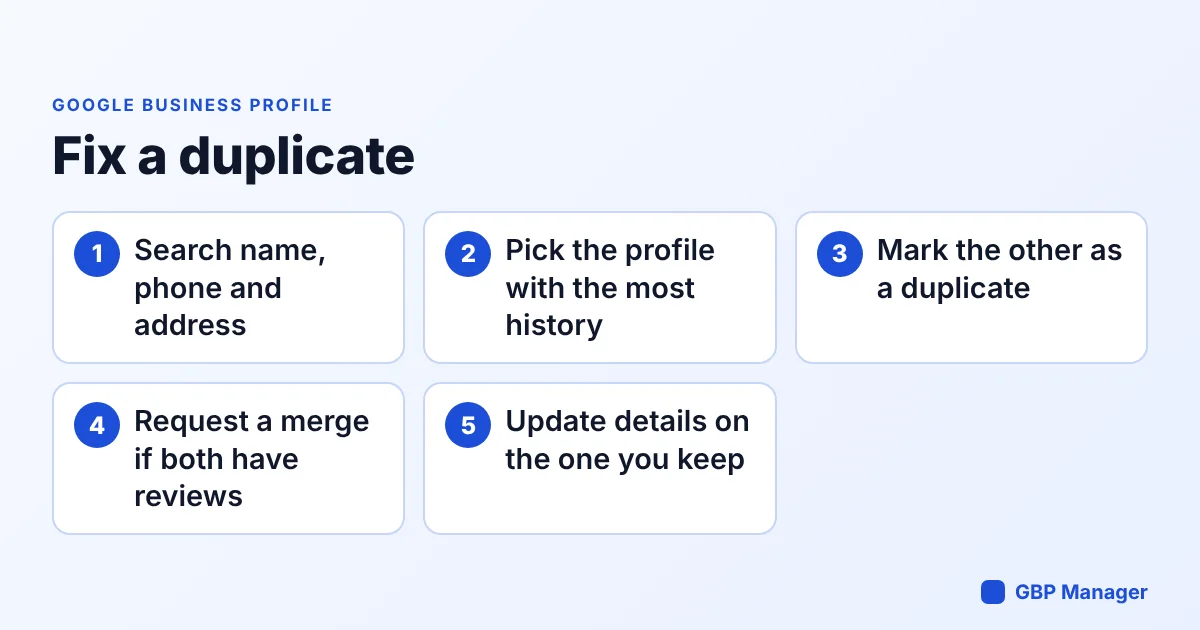
Step 1: find them all
Search these in Google Maps, one at a time:
- Business name
- Old business name
- Phone number
- Street address
- Website domain
Write down every listing that shows. Note how many reviews each has and which one you can manage.
Step 2: choose the one to keep
Keep the profile that has the most reviews, the longest history and the correct name and address. If your newer profile is the one you control but the old one holds 200 reviews, consider asking for a merge so the reviews are kept.
Step 3: report the extra one
- Open the duplicate listing on Maps.
- Choose Suggest an edit.
- Choose to mark it as a duplicate, or as closed if it is an old one.
- Name the listing it duplicates, and submit.
If you own both profiles, you can mark the extra one permanently closed, but only do that if it really duplicates. Do not delete the keeper. See delete or mark closed.
Step 4: ask for a merge when reviews matter
Contact Business Profile support and explain: both listings are yours, the address and business name are the same, and you want reviews on one listing. See contact support. Merging is not guaranteed and can take days.
When two profiles at one address are fine
- Two separate businesses sharing a building.
- Individual practitioners such as doctors or agents at the same clinic, each with their own public-facing practice. Google has specific rules.
- A department with its own hours and phone, such as a hospital pharmacy.
It is not fine to create extra profiles for each service you offer or to place the same company in two nearby listings to look bigger. That can lead to suspension.
Preventing duplicates
- Search before you create.
- Keep one primary phone and address everywhere. See NAP consistency.
- Keep an owner list so agencies do not create their own.
Quick answers
Will I lose reviews if I report a duplicate? Reviews on the removed listing may not carry across unless a merge is approved.
How long does it take? A few days to a couple of weeks.
Can customers still find the old one? Until Google handles it, yes.
Is it my fault if a duplicate exists? Often not; Google creates listings from public data.
Try it
Connect your profiles to GBP Manager to see all listings you manage and spot an unexpected extra one.