
Quick answer: A local rank checker runs the same Google Maps search from a grid of points around your business and colours each point by your position. You can run one free in GBP Manager (one phrase, up to 25 pins a month). Read it by Top-3 coverage, the share of points where you are in the top three, not by a single rank number.
Ask ten people to search "dentist near me" on Google Maps and you may get ten slightly different lists. The results change with where each person is standing. So the honest answer to "where do I rank?" is never one number. It is a map.
A local rank checker (also called a local rank tracker or a Google Maps rank checker) gives you that map. It searches Google Maps from many points around your business and shows your position at each one. This guide explains how it works, how to read the result, and how to run one for free with GBP Manager.
Why one rank number is not enough
Most people check their ranking by typing their keyword into Google Maps on their own phone, standing in their own shop. Of course they come first. They are standing next to the business.
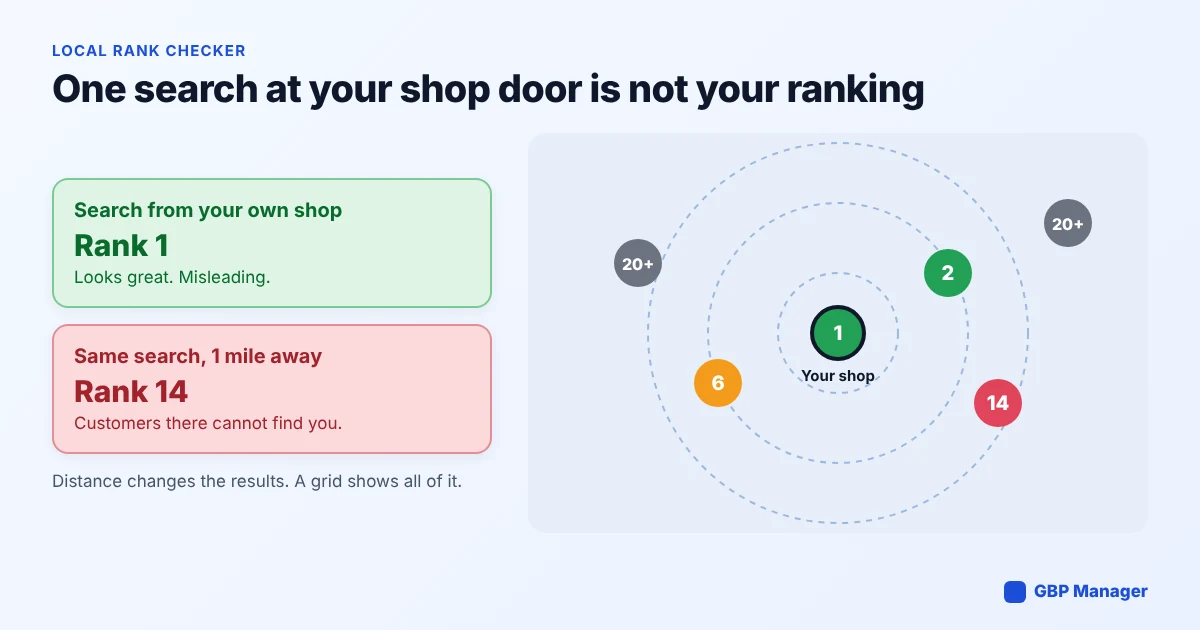
Google says that local results are based mainly on three things: relevance (how well your profile matches the search), distance (how far you are from the person searching) and prominence (how well known you are, including your reviews and links). Distance is the one you cannot change, and it is the reason a single check misleads. Your customers do not all live at your door.
A rank checker fixes this by repeating the search from a grid of points. You then see how far your visibility stretches and where it fades.
How a local rank checker works
The idea is simple:
- You choose a business, a search phrase and an area.
- The tool lays a grid of points over the map. A 5 × 5 grid has 25 points.
- At each point it runs the same Google Maps search, as if a customer were standing there.
- It records your position at each point and colours the point by that position.
Each search is called a pin. More pins give a more detailed map, but cost more to run, which is why free plans cap them.
How to run a free check in GBP Manager
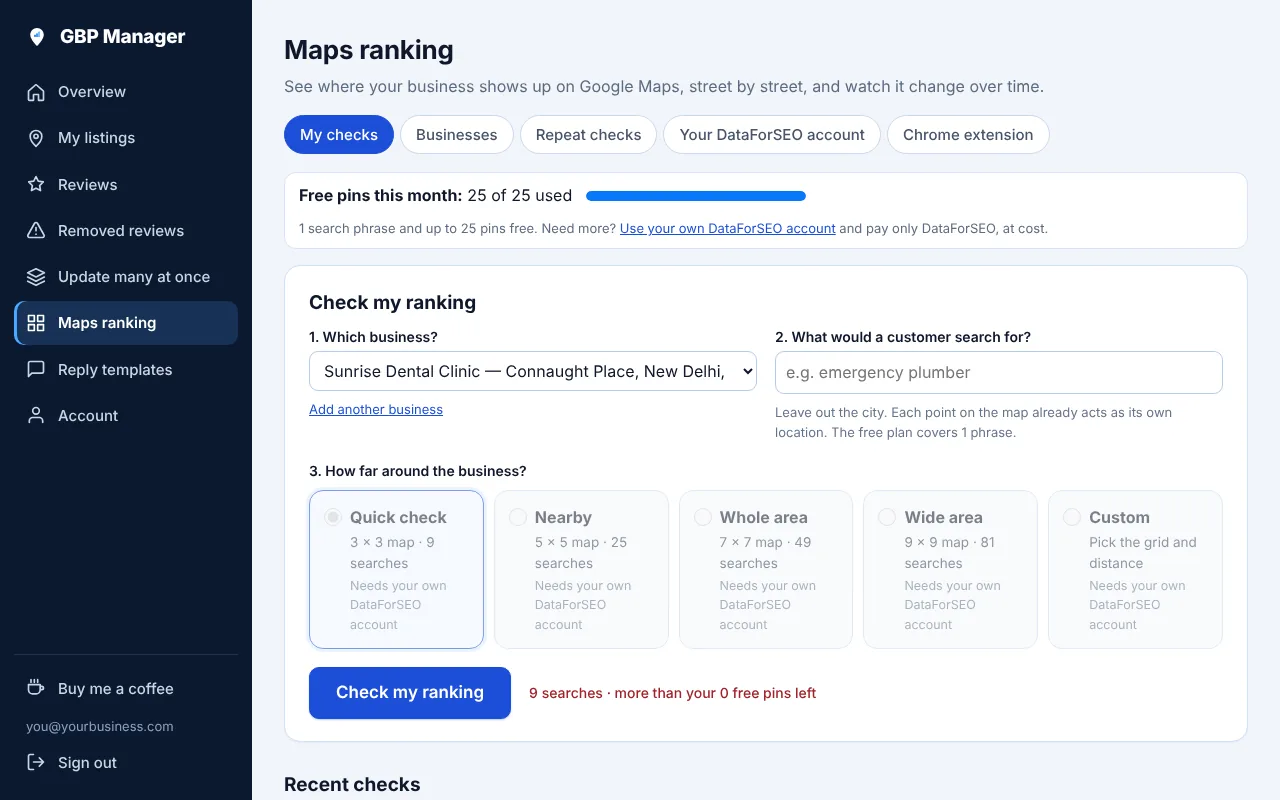
GBP Manager includes a local rank checker. The free plan covers one search phrase and up to 25 pins a month, enough for one Nearby (5 × 5) map.
- Sign in with Google and open Maps ranking.
- On the Businesses tab, search for your business by name and city, then click Add next to your listing.
- Open Check my ranking. Pick your business, type the phrase a customer would use (for example "dentist"), and choose a size.
- Click Check my ranking and wait while the pins fill in.
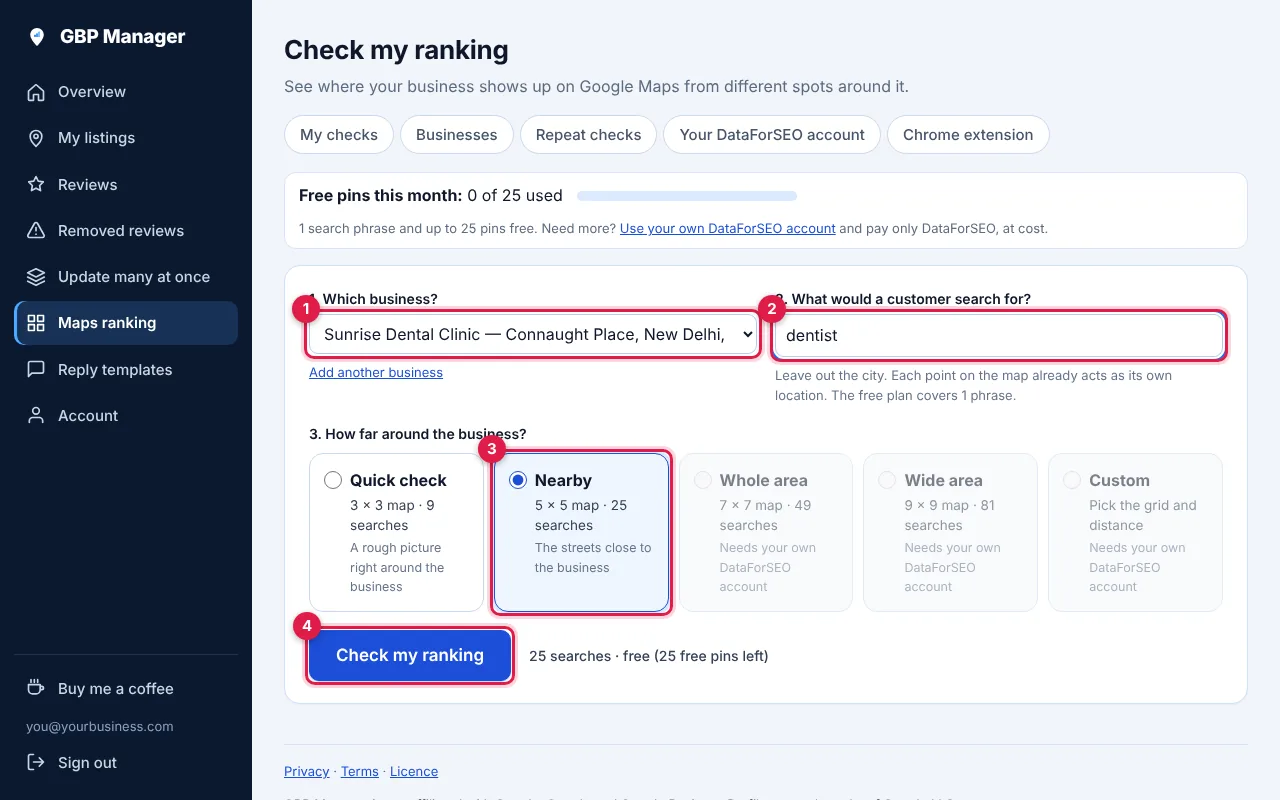
Type the phrase without a city name. Each point on the map already acts as its own location, and adding "Delhi" would pull every point towards the same results.
If you want the full walk-through with screenshots, read How to check your Google Maps ranking, step by step.
How to read the map
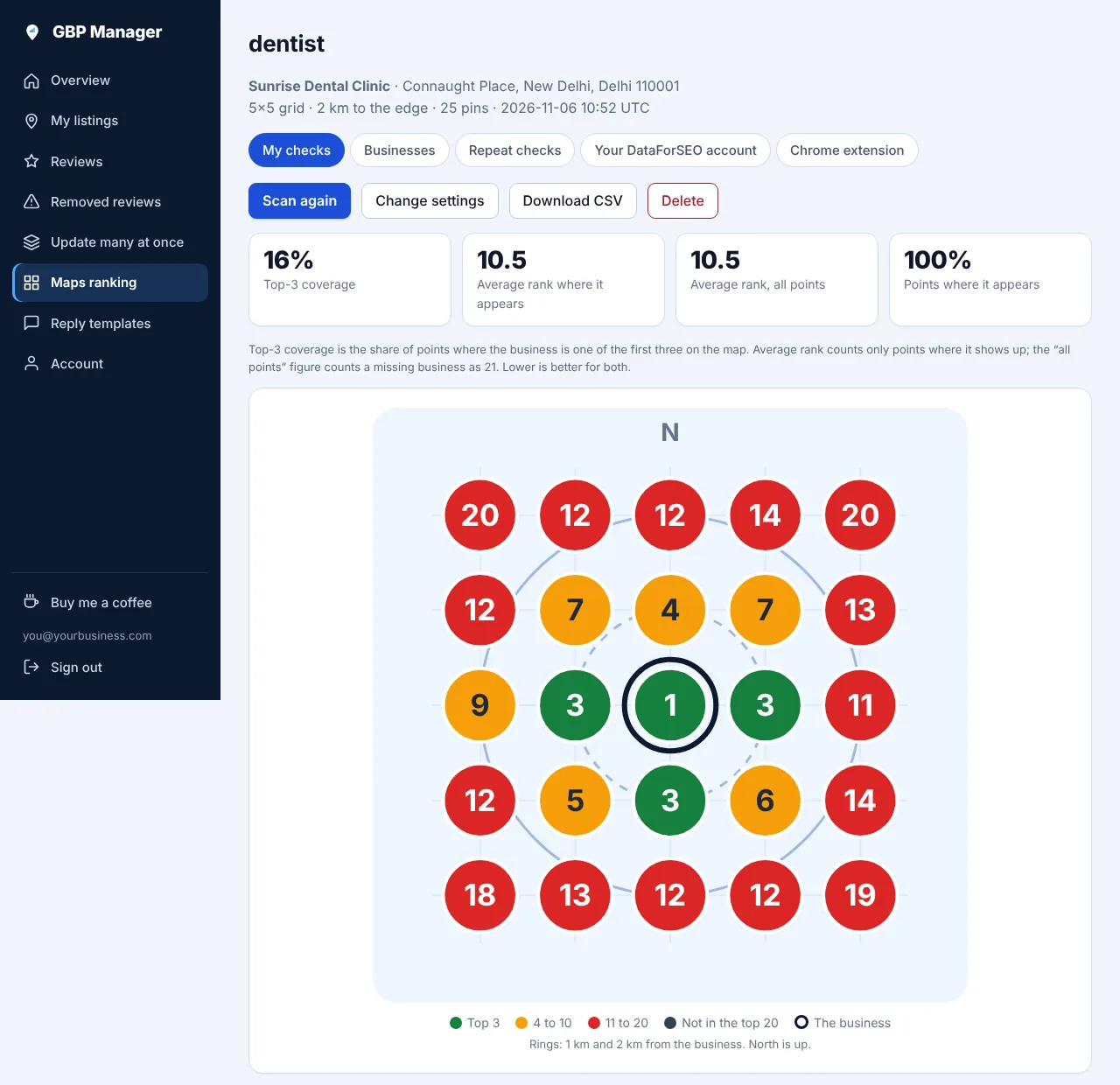
When the check finishes you get a map of coloured circles and four numbers.
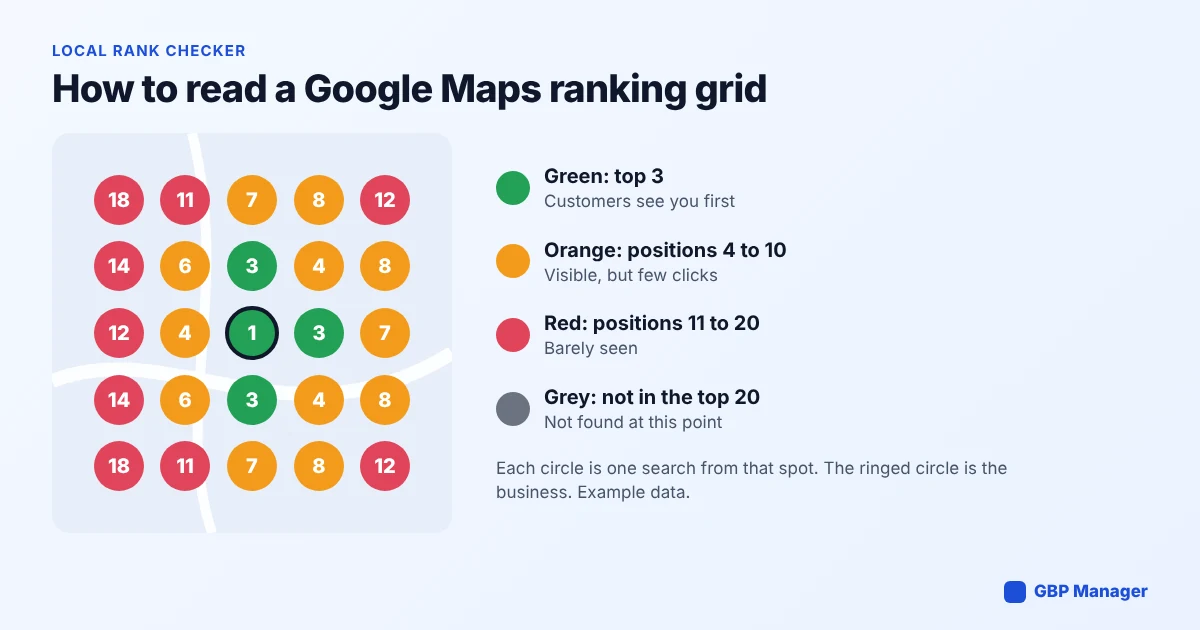
The colours:
- Green: top 3. This is where customers see you first.
- Orange: positions 4 to 10. Visible, but you lose most clicks.
- Red: positions 11 to 20. Barely seen.
- Dark grey: not in the top 20 at that point.
And the four numbers at the top:
- Top-3 coverage: the share of points where you are in the top three. If you only watch one number, watch this one.
- Average rank where it appears: your average position, counting only points where you show up.
- Average rank, all points: the same, but a point where you are missing counts as 21.
- Points where it appears: how many points found you at all.
What your map is telling you
Most maps fall into one of three patterns. Each one points to a different fix.
Strong at the centre, fading fast
You are first near your door and drop off within a few streets. This is the normal pattern, and it is a prominence problem. To widen the green area, you need more reviews, a better rating and more links and mentions from local websites. Our guide to how to get more Google reviews is the best place to start.
Weak or missing almost everywhere
Even at your own address you are orange or red. That points to relevance: Google is not sure your business matches the search. Check that your main category is the most specific one that fits, that your services are listed, and that your description says what you actually do. The Google Business Profile optimization checklist covers each field.
Strong in one direction only
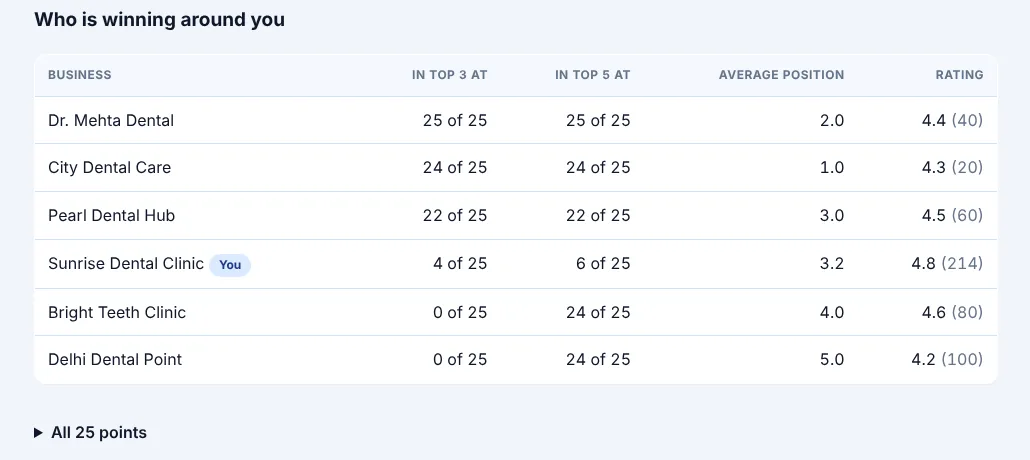
You are green to the east and grey to the west. Look at the Who is winning around you table below the map. A competitor with a better rating or many more reviews usually owns the side you are missing. Compare your numbers with theirs.
Six things most rank checker guides do not tell you
1. Choose the grid size from your customers, not from the menu
Before you pick Quick, Nearby, Whole area or Wide area, write down where your last 50 customers came from (postcode, area or the address on the booking). Find the distance that covers about eight of every ten. Choose the smallest grid that reaches that far. This is a rule of thumb, not a Google rule, but it stops you paying for pins in places you do not serve and stops you celebrating green pins in places nobody comes from.
2. "Average rank where it appears" can flatter you
Say you show up at only 5 of 25 points, and at each you are second. Your average rank where it appears is 2, which sounds great. But you are invisible across 80% of the map. This is why Top-3 coverage and Points where it appears matter more. Always read the two together.
3. A grey pin is not always a failure
Grey means you are not in the top 20 at that point. Before you worry, ask whether customers actually live or work there. A river, an industrial estate or a park inside the grid will show grey, and that is fine. Compare the map with your customer list from point 1.
4. Fix the nearest orange ring first
The quickest gains are at the edge of your green area, not in the red zone at the far side. The first orange pins beyond your green are where a few more reviews or a clearer profile can tip you into the top three. Look for the closest orange ring and work on that side.
5. Scan at the same time each week
Searches can vary with the time of day, and for businesses with set opening hours, whether you are open can change what shows. Pick a fixed day and time for your scans so any change you see comes from your work, not from the clock.
6. Turn "who is winning" into a number
Open the Who is winning around you table and take the leader that beats you on most points. Subtract your review count from theirs. If they have 180 and you have 60, the gap is 120. If you collect 10 genuine reviews a month, closing the gap takes about a year, so you also need a better rating or a more complete profile. If you collect 30 a month, it is four months. Now you have a plan with a date instead of a vague goal. For how to collect reviews at that pace, see How to get more Google reviews.
Check the same phrase again, on a schedule
One map is a snapshot. The real value comes from repeating the same check, with the same phrase and the same size, so you can see whether your work is moving the numbers.
In GBP Manager, open Repeat checks, choose the business, the phrase and the size, and pick how often (every week is a good start). Each run is saved, so you can compare dates. You can also Download CSV or send a private share link to a client.
Two tips:
- Check one phrase per map. "Dentist" and "teeth whitening" are different searches with different maps.
- Do not change the size or phrase between checks, or you will be comparing different things.
Free limits, and what to do if you need more
The free plan is designed for owners who want to know where they stand. It covers one phrase and up to 25 pins a month.
If you need bigger maps or more phrases, you can choose a bigger plan or buy extra credits. The details, with example costs, are in What Google Maps rank tracking costs.
Good to know
- Results come from searches made at each point. They may differ a little from what a person sees on their own phone, because Google also uses search history and device settings. Use the maps to compare places and dates, not as a promise.
- A rank checker only measures. It does not change your ranking. What you do next is what matters.
- Rankings move from day to day. Look at the trend over several weeks, not one bad scan.
Quick answers
Is there really a free local rank checker? Yes. GBP Manager's free plan includes one phrase and up to 25 pins a month.
How is this different from checking on my phone? Your phone shows one location, yours. A grid shows many.
How often should I check? Once a week is enough for most businesses. Daily checks cost more and rarely show anything new.
Will checking my ranking hurt it? No. Searching Google Maps from different points does not affect your profile.
Try it
Open GBP Manager, sign in with Google and run your first check. It takes about five minutes to set up.
GBP Manager is not affiliated with Google. Google and Google Maps are trademarks of Google LLC.