Quick answer: Google changes the Business Profile often: names, buttons, features and policies. The best way to stay current is to follow Google's official help and blog, check your dashboard monthly and keep a dated log. Below is a short history of changes that matter, and how to react to the next one.
Features roll out in stages by country and account, and this page cannot know every change after it was written. Always check Google's own pages for the latest.
Notable changes in recent years
- Rename to Business Profile (2021). Google My Business became Google Business Profile, with editing moved into Search and Maps. See GMB vs GBP.
- Retirement of the old app and moves to manage from Search, Maps and the manager.
- Messaging changes. Chat features on profiles have been changed or removed over time.
- Q and A changes. The public Questions and Answers area has been replaced by an Ask feature. See Q and A changes.
- Performance reports updated. Metrics and layout have changed several times. See performance insights.
- Video verification became a common method for many businesses. See verification.
- Stronger policy enforcement on fake reviews, fake listings and keyword-stuffed names. See suspended profiles.
- Identity and health attributes and other new attribute types added. See attributes.
Where to follow official news
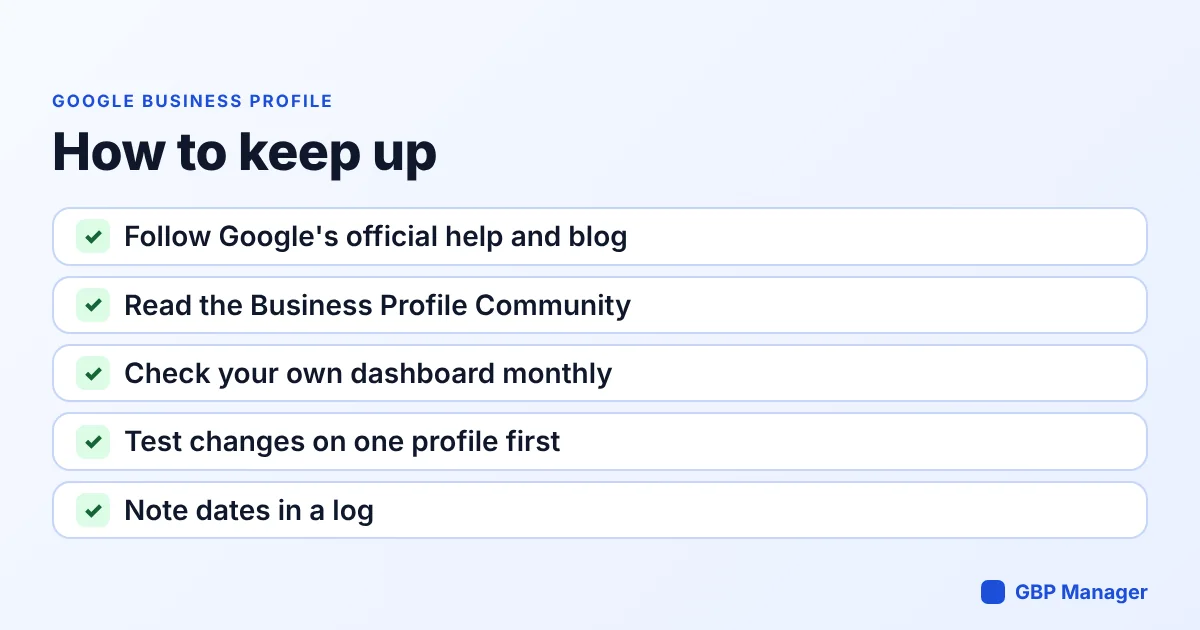
- Google's Business Profile Help Center and its "What's new" pages.
- Google's Search Central and Maps blogs for broader local search changes.
- The Business Profile Community forum.
- Reputable local SEO news sites, but check claims against Google.
How to react to a change
- Confirm it. Is it official or a rumour?
- Check your profile. Does the feature appear for you?
- Read the help page for the details and limits.
- Update your process (for example, FAQs or review tools).
- Test. Change one profile first and watch for effects.
- Tell clients if it affects them.
Keep a log
In a spreadsheet, record date, change, source link, impact and action. When rankings move or a feature disappears, the log helps you find the cause.
Be careful with ranking updates
When Google updates local search, positions can swing for weeks. Do not change everything at once. Use a grid check before and after. See check Google Maps ranking.
What to do each month
- Open each profile and look for new options.
- Read the Help Center's update notes.
- Check hours, categories and attributes.
- Review your policies for reviews. See review policy.
Common mistakes
- Trusting a screenshot from an old guide.
- Acting on rumours.
- Changing categories because of a rumour.
- Forgetting to check all locations.
Quick answers
How often does it change? Small changes are frequent.
Will Google tell me? Sometimes through email or the dashboard.
Can I opt out of features? Not always.
Where do tools get data? From the official API, which also changes. See API guide.
Try it
Track rankings before and after changes with GBP Manager.