
Quick answer: Google says local results are based on relevance, distance and prominence. You cannot change distance, so you work on the other two: make your profile match the search (relevance) and build reviews, links and a good reputation (prominence). Verify your profile, choose the right primary category, fill in every field, collect genuine reviews steadily, reply to them, keep your details consistent and measure your progress on a map.
Google is clear on one point: there is no way to pay for a better local ranking. What you can do is make your business easier to match to a search, and easier for Google to trust.
How Google ranks local results
Google names three factors.
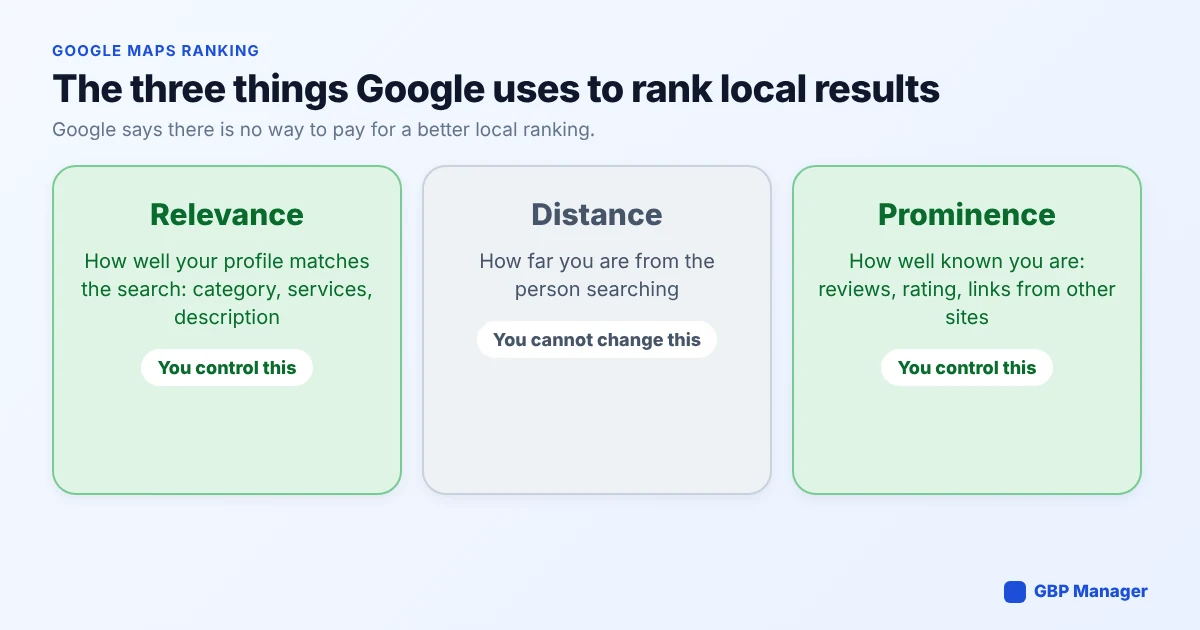
- Relevance: how well your profile matches what someone is searching for. Complete, detailed information helps Google match you to the right searches.
- Distance: how far you are from the person searching. If they have not shared a location, Google uses its best estimate.
- Prominence: how well known your business is. This includes links from other websites and the number and rating of your reviews.
Distance is why your ranking looks different from every street. It is also why a single check on your own phone is misleading. See Free local rank checker for how to see it properly.
The 10-step plan
Step 1: Verify your profile
Google's first tip is to verify your business so Google knows you are authorised to represent it. If you have not done this, nothing else will go far. Read Google Business Profile verification.
Step 2: Choose the most specific primary category
Your primary category is your strongest relevance signal. Use the most specific category that describes what you are (for example "Emergency plumber", not "Home services"). Google's guidelines say to use as few categories as possible and to choose ones that describe your core business, not things you merely have or do.
Step 3: Fill in every field accurately
Add address (if customers visit), regular and special hours, attributes, services, products and a clear business description. Google says complete, accurate information helps it match you to the right searches. Use your real business name with no added keywords. Keyword-stuffed names are a common reason for suspension.
The full field-by-field list is in Google Business Profile optimization checklist.
Step 4: Add real photos, and keep adding them
Add photos of your storefront, inside, team, work and products. Google lists photos and videos among its tips. Add new ones regularly so your profile looks active.
Step 5: Ask for reviews, steadily
Reviews and ratings feed prominence. Ask every customer, not only the happy ones, using your Google review link. Never offer a reward. A steady flow looks natural. Follow Google review link and QR code and How to get more Google reviews.
Step 6: Reply to every review
Google lists replying to reviews among its tips. It shows customers you are active. Use templates to keep it quick: see How to respond to Google reviews.
Step 7: Post regularly
Posts such as updates, offers and events appear on your profile. Add one weekly or fortnightly, and use a link to a page that helps. Posts are archived after six months unless you set a date range. If you have several locations, posting from one screen saves hours: see How to post to many Google Business Profiles at once.
Step 8: Make your website support your profile
Make sure your website has a clear page for each service and each location, with the service and the city in the title and headings. Put the same name, address and phone number on the site as on your profile. See NAP consistency.
Step 9: Earn local links and mentions
Links from other websites are part of prominence. Look for local chambers, suppliers, partners, sponsorships, event pages and local news. A few relevant local links beat many random ones.
Step 10: Measure from many points, not one
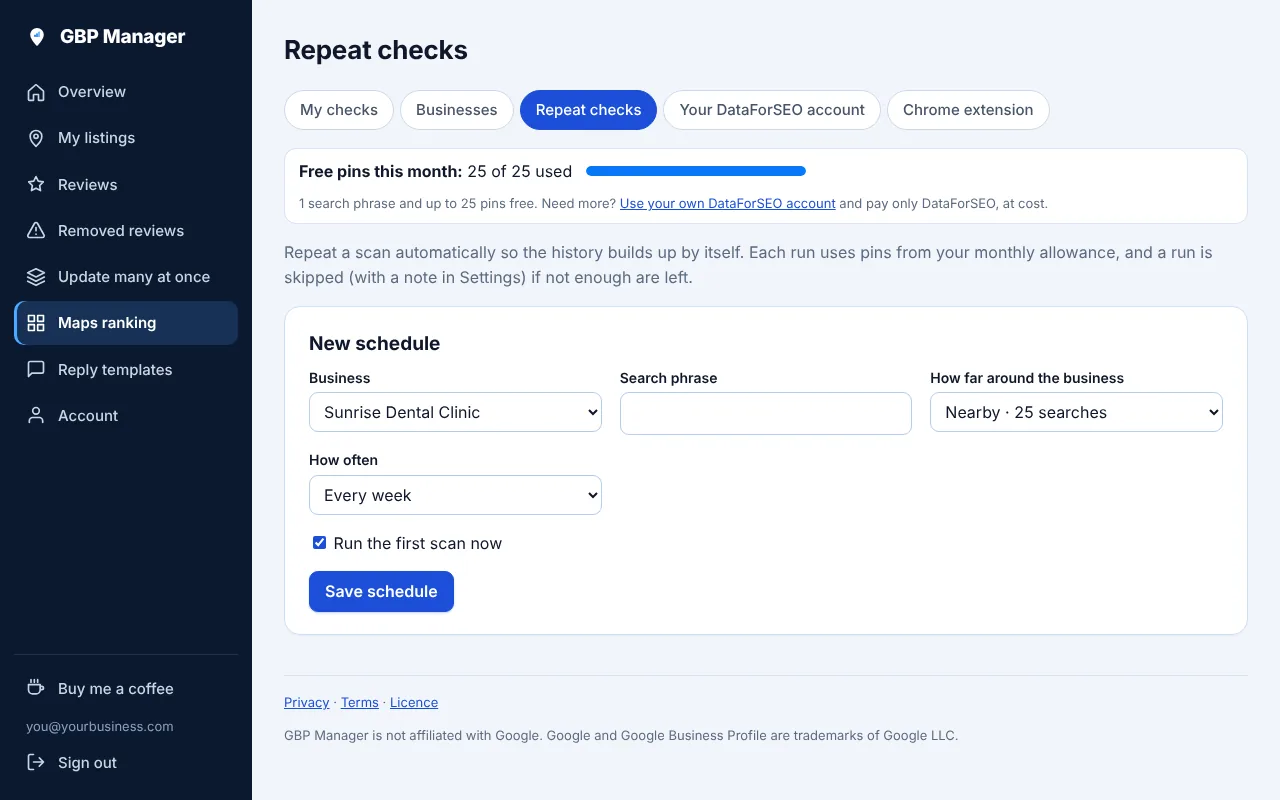
Run a ranking map for your main phrase every week or two, and watch Top-3 coverage. In GBP Manager, open Maps ranking, add your business, choose a phrase and size, and set up Repeat checks so each run is saved.
Read the map, then pick your step
You do not have to do all ten at once. Your map tells you where to start.
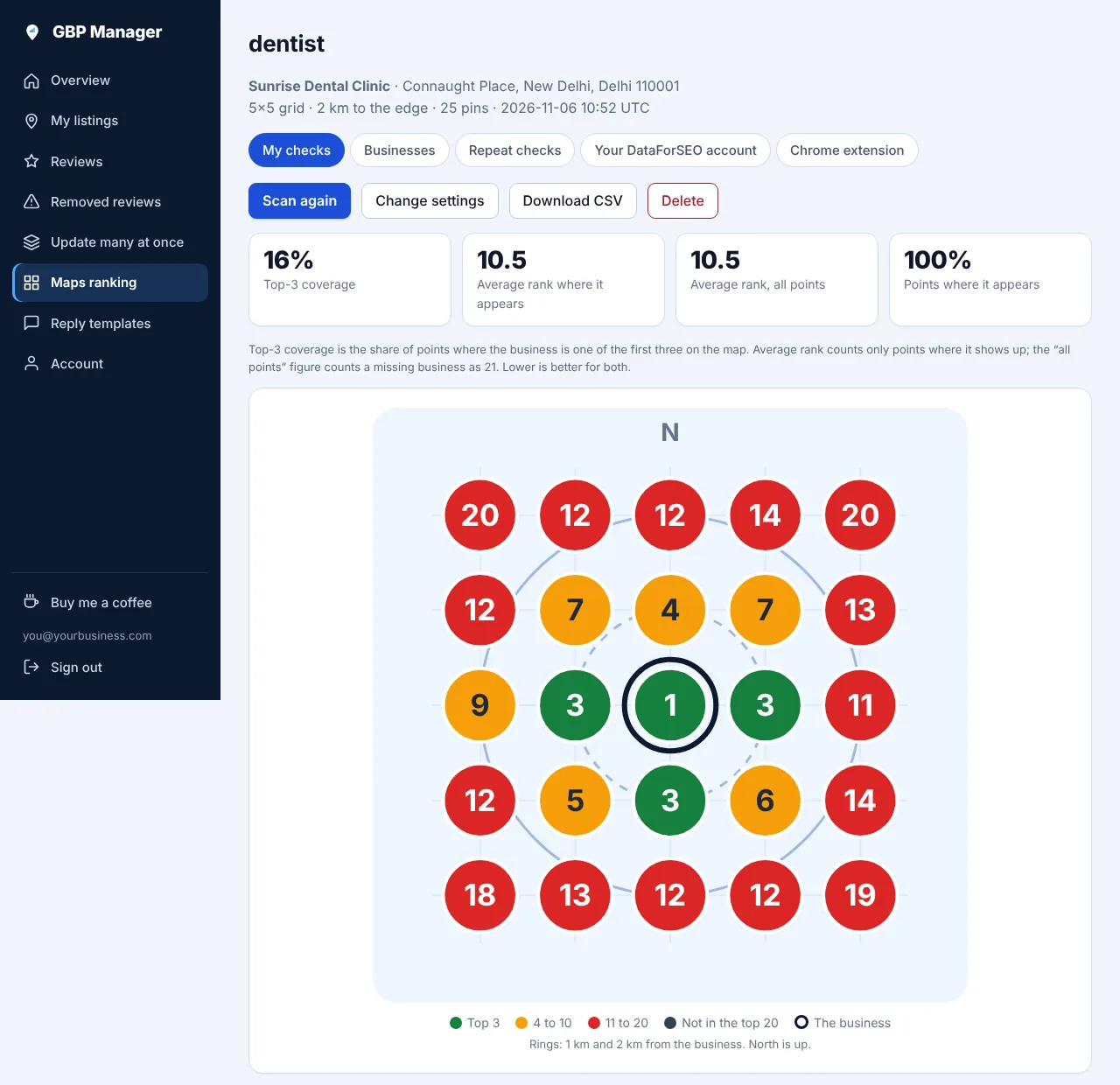
- Weak even at your own address: relevance problem. Start with steps 2, 3 and 8.
- Strong near you, fading fast: prominence problem. Start with steps 5, 6 and 9.
- Strong in one direction only: a competitor owns the other side. Compare their reviews and categories with yours.
- Great everywhere you serve: keep it up. Move to a monthly routine.
A 30-60-90 day plan
Days 1 to 30: foundations. Verify, fix category, fill all fields, add 10 photos, fix your name, address and phone, set up your review link and run the first map.
Days 31 to 60: trust. Ask every customer for a review, reply to all reviews within two days, post weekly and add your first local links.
Days 61 to 90: compare and adjust. Re-run the same map. Look at the nearest orange ring and work on that side. Compare your reviews to the leader's and set a monthly target.
What most guides miss
- Distance is not your enemy, it is your map. If most of your customers come from a few streets, a strong green zone there is worth more than an average ranking across a whole city. Aim for dominance where your customers live.
- Work the nearest orange ring. The closest orange pins beyond your green area are the cheapest to win.
- One phrase per map, three phrases in total. Track your main service, a second service and a problem-based phrase, such as "emergency plumber". Each shows a different map.
- Do not change several things at once. If you change your category, description, photos and reviews strategy in one week, you will not know what worked. Change one thing, wait two weeks, check the map.
- Be careful with the name. Some people add keywords to their business name. It goes against Google's guidelines, which say to use the name your business is known by in the real world, and it is a common cause of suspension. It is not worth the risk. See Google Business Profile suspended.
- Do not buy reviews or links in bulk. Google bans paid reviews, and suspicious patterns can lose you the reviews you do have.
Quick answers
How long does it take to rank higher? Small fixes like categories and missing fields can show in a few weeks. Reviews, links and reputation take months. Expect to measure over 8 to 12 weeks.
Does posting on Google Business Profile boost rankings? Google does not say posts are a ranking factor. They make your profile more useful to people who find it, so they are worth doing, but do not expect them to move you on their own.
Can I pay Google to rank higher on Maps? No. Google says there is no way to request or pay for a better local ranking. Ads are separate and are labelled as ads.
Why do I rank first for me but not for customers? Distance. You are next to your own business. Customers elsewhere see different results.
Try it
Run a free map today to see where you stand, then repeat it in four weeks.
GBP Manager is not affiliated with Google. Google, Google Maps and Google Business Profile are trademarks of Google LLC.